Table of Contents
Welcome to HealThyRam.com – Wellness Marketplace platform. We would be happy to take you on-board to sell your products related to wellness.
Wellness Vendor Registration
First you need to register as a Vendor at HealThyRam.com, let’s start –
- Go to https://healthyram.com/my-account/
- Click on Register and choose “I am a Wellness Vendor”
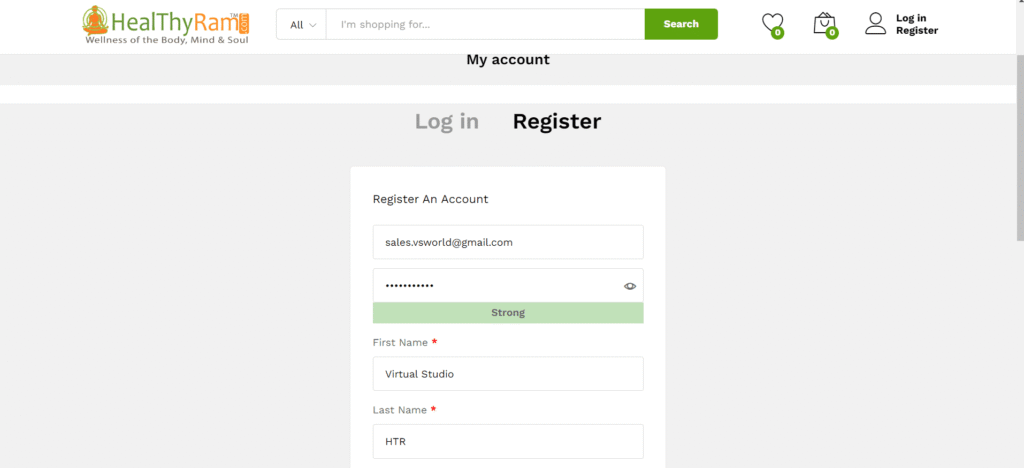
- Fill the details in the form and click on “Register”

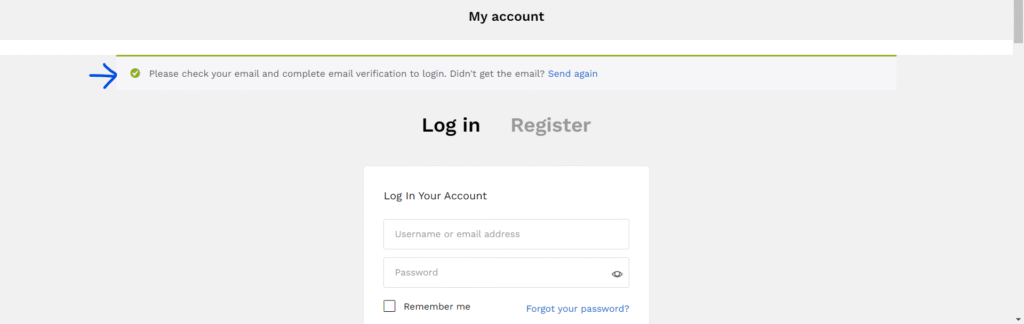
As you complete the registration, you will be taken to the Login Page; but before Login you need to Verify your email. So, please check your email inbox and open the email received from HealThyRam and click on ‘Verify’ link to verify and login to your Dashboard.
As you complete the registration, after email verification, you will be taken to your Vendor Dashboard.
Now, you can setup you store at HealThyRam.com or can do later if you are not having all information with you.
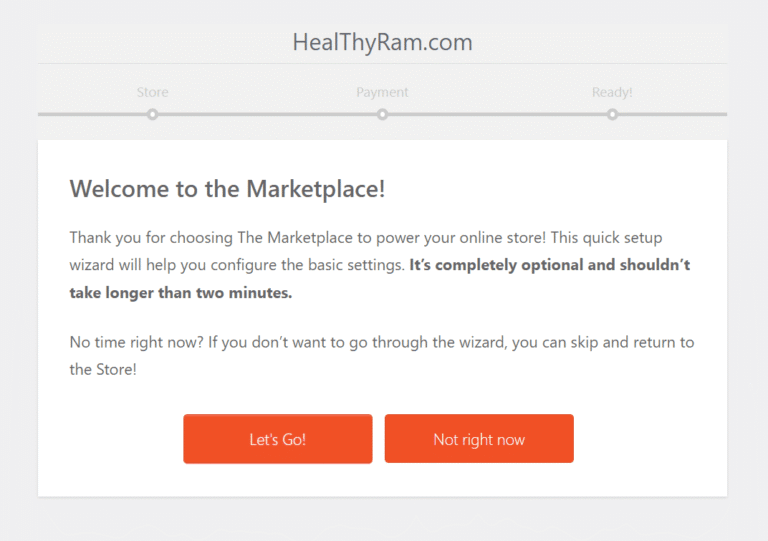
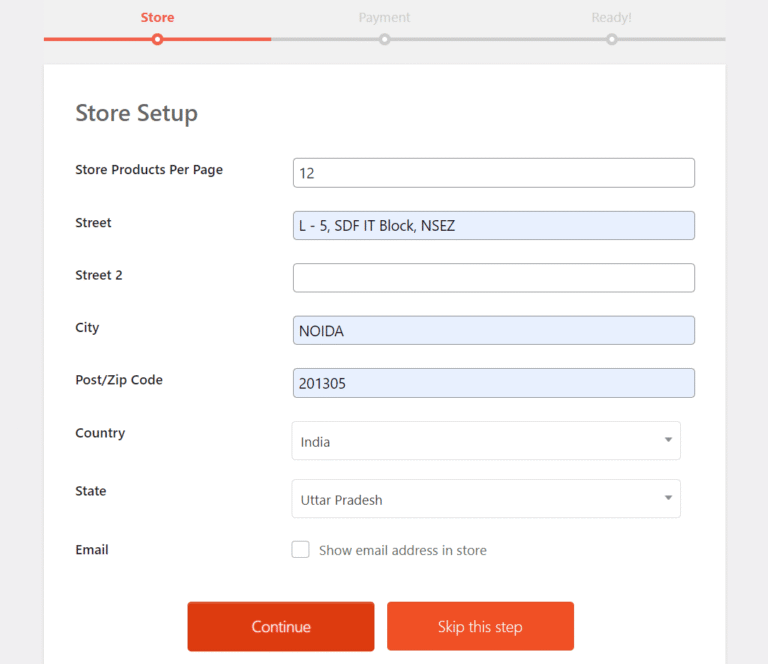
Step 1: Store Setup – Enter your store details here.
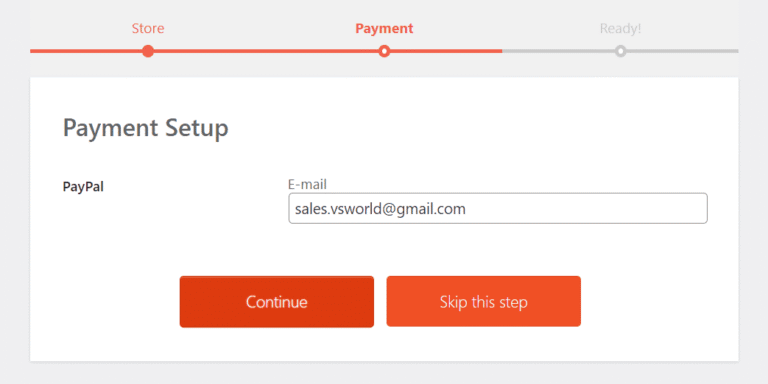
Step 2: Payment Setup – If you have PayPal account, enter details here. If not, you can ‘Skip the step’.
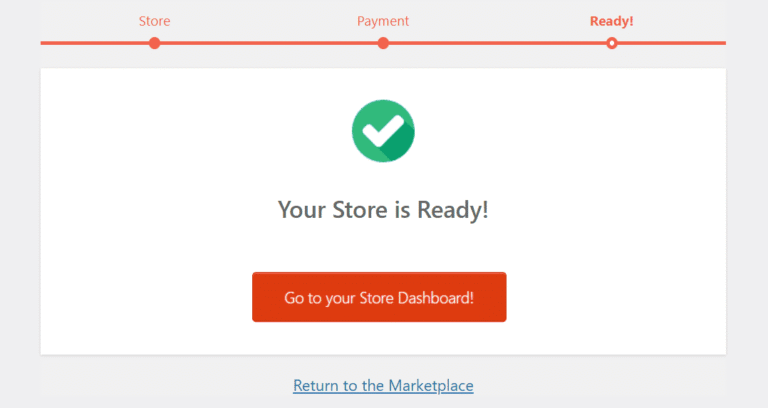
Step 3: Your store is ready. Now, ‘Go to your Store Dashboard’.
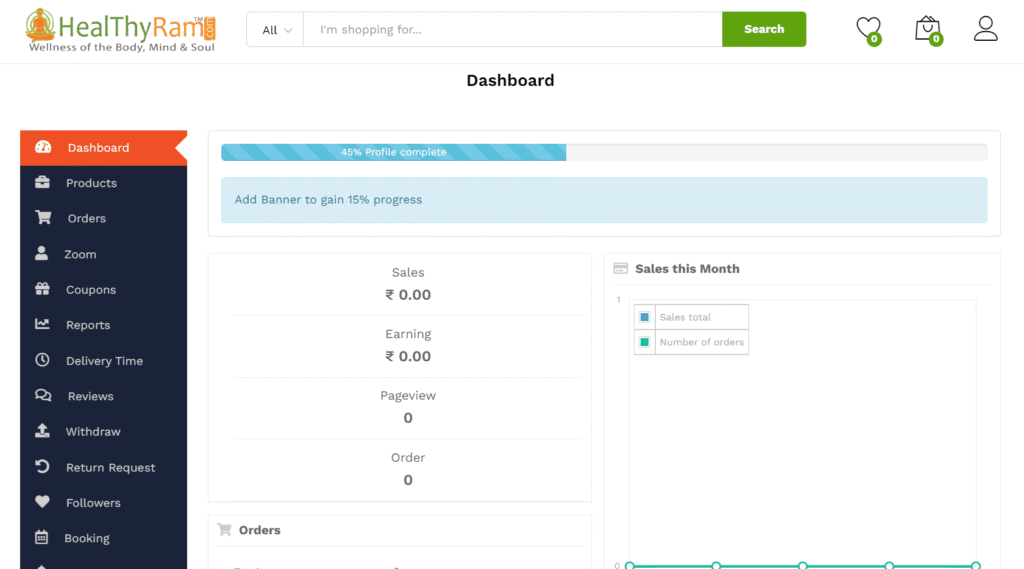
Once, you set up your store you get your Vendor Dasboard. Vendor Dashboard gives you an overall summary of your store and activities.
Subscribe a Package and complete Document Verification
Next, you need to Subscribe to a package and complete Document Verification to get allowed to create/add your product at HealThyRam.
Subscribe a package:
At your Wellness Vendor Dashboard,
- Go to the Subscription menu and
- Click on Buy Now for a Package better fits your requirements.
- Checkout Process – It will automatically, take you to the Checkout page to fill in the Billing details and click on Place Order to make payment and complete buying the package. You may apply a coupon if you have any.
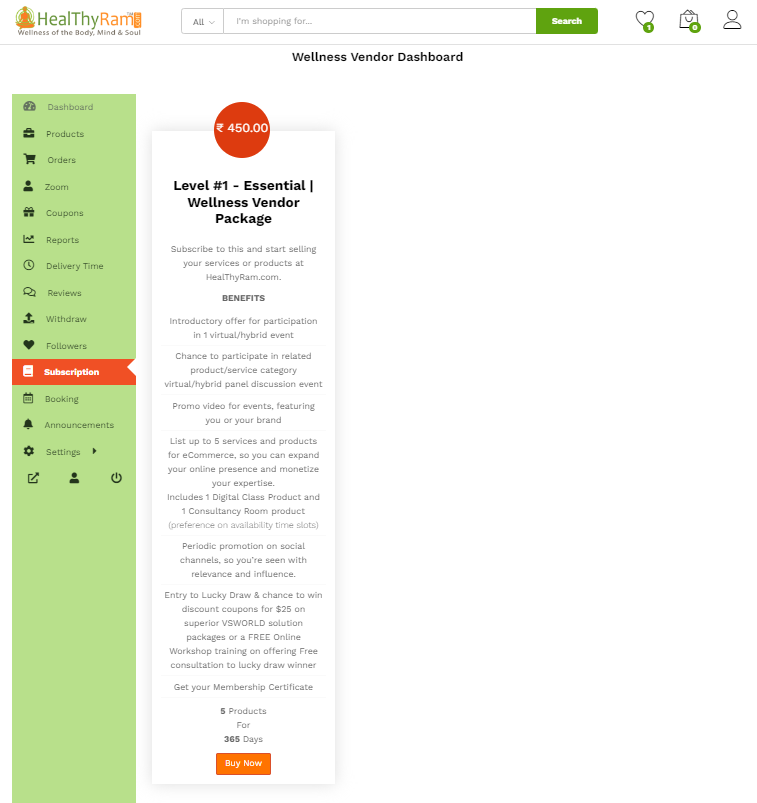
You shall get notified by Admin once the purchase is verified and accordingly, you can come back to your Wellness Vendor Dashboard > Subscription page to see the active package.
Verification
You must complete the document verification step to enable selling products/services via the HealThyRam.com platform. You just simply need to upload the required documents for verification. Once, your documents are verified you shall get notified via email and at the dashboard to start creating products and selling.
To start with the verification process,
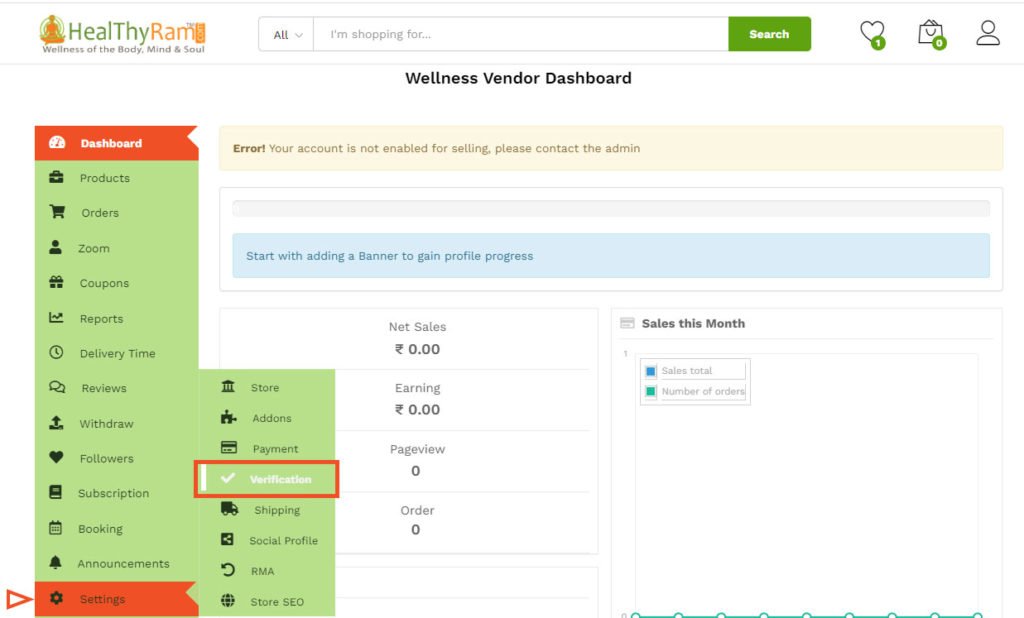
- Login at HealThyRam.com and go to Wellness Vendor Dashboard
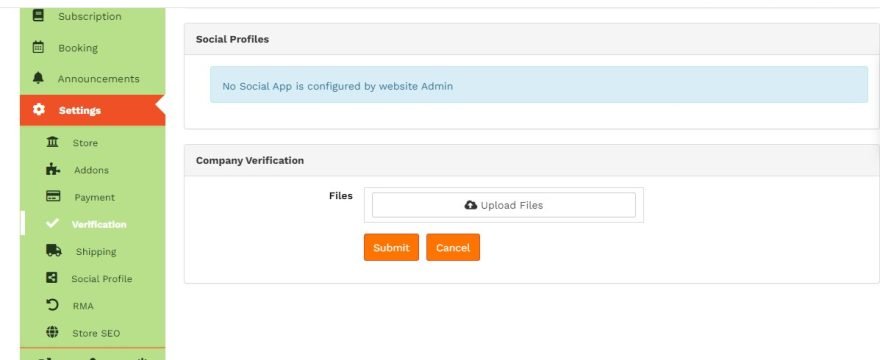
- Go to Settings > Verification
- Upload all required documents under the ID, Address, and Company verification sections.
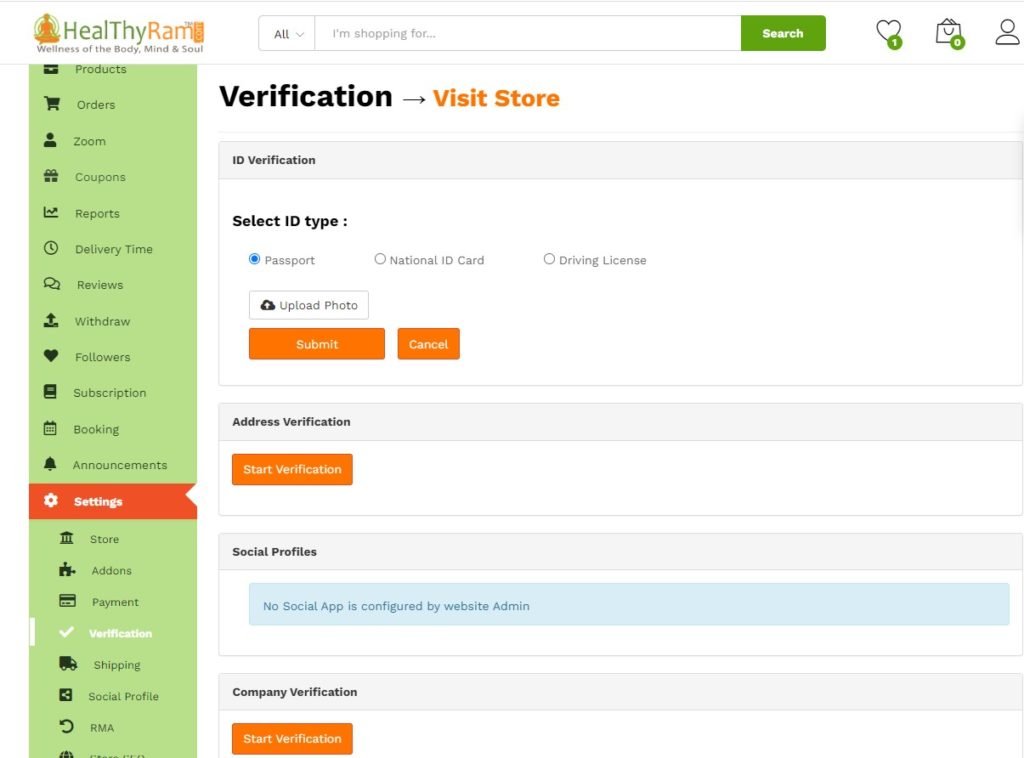
ID Verification:
Upload any – Passport or Aadhar / Voter’s Id or Driving License
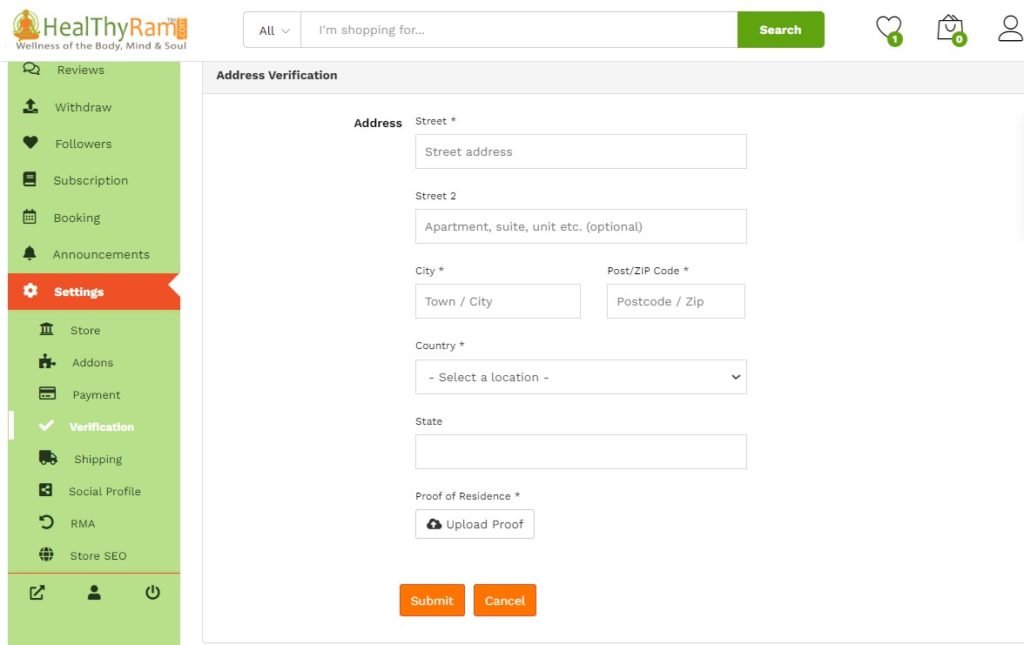
Address Verification:
Share your business address and upload any proof – UtilityBilll – electricity, telephone etc.
Company Verification: Upload all documents (you need to upload files one by one, then Submit)
- Company PAN Card,
- GST Certificate,
- Business registration proof or incorporation certificate,
- Bank account proof (Cancelled cheque)
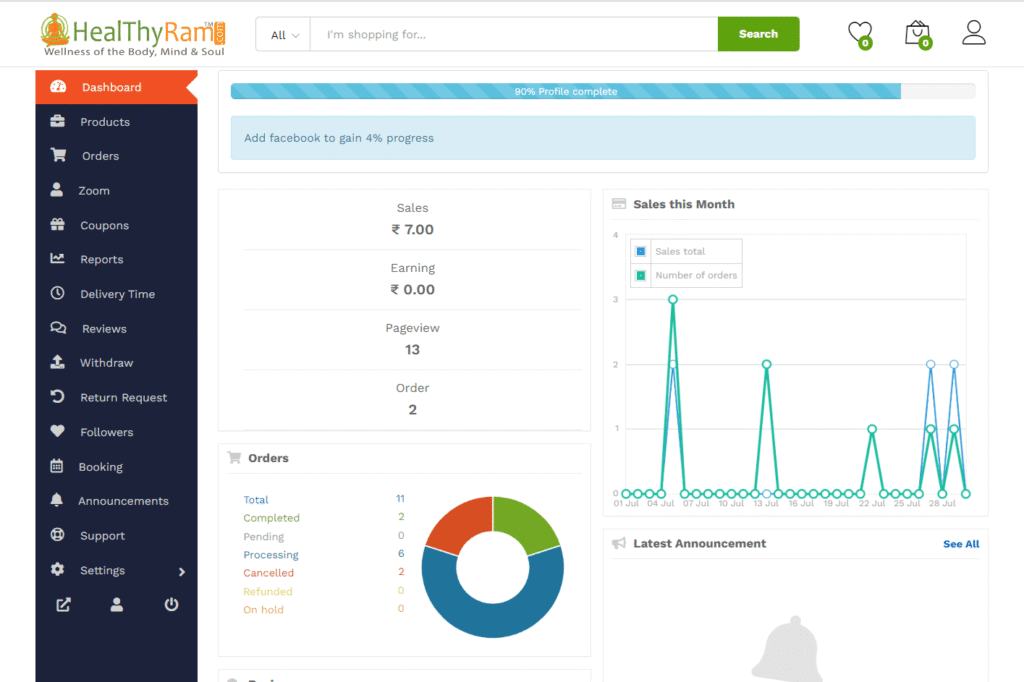
HealThyRam Wellness Expert (Vendor) Dashboard
Vendor Dashboard gives you an overall summary of your store and activities. From this dashboard, you can easily manage your stores and also get quick insights. Besides that, it will provide suggestions on how to make your store more appealing to your customers.
You can find an overview of your store, page view, orders, earnings, reviews and products. There is also an announcement section. It displays all the latest notice or announcement from HealThyRam admin.
So, now you should login and create your first product from your dashboard. A product can be Online Consultancy, Online Class via Zoom or physical product as well (Stage 2).
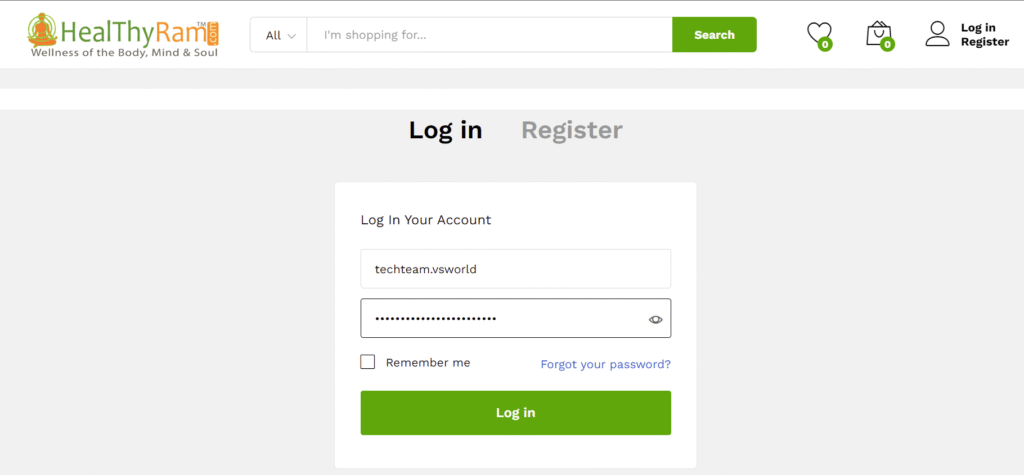
Login with your registered user ID and password. If need help to get your login details, contact HealThyRam Support Team (su*****@********am.com)
Creating Virtual Product with Recurring Sessions
Usable for Online Class, Online Concert, Webinar for an Online Class etc.
Here you/Vendor will choose date and time, create the meeting and to sell. The visitor to the site then see the product/event details and can make a purchase to get join links for the meeting.
Step 1: Create a Meeting Link
First, you should create the Virtual Meeting Link, we are using Zoom Meeting here. Next, at Step 2 you would create a Product and link this Zoom meeting.
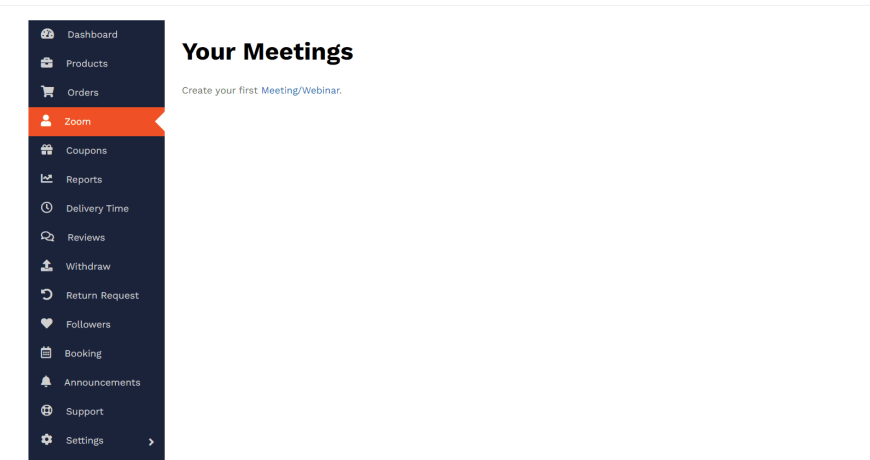
Navigate to Vendor dashboard→ Zoom → Create your First Meeting
Next, fill all the required details as shown below. You may skip the optional fields.
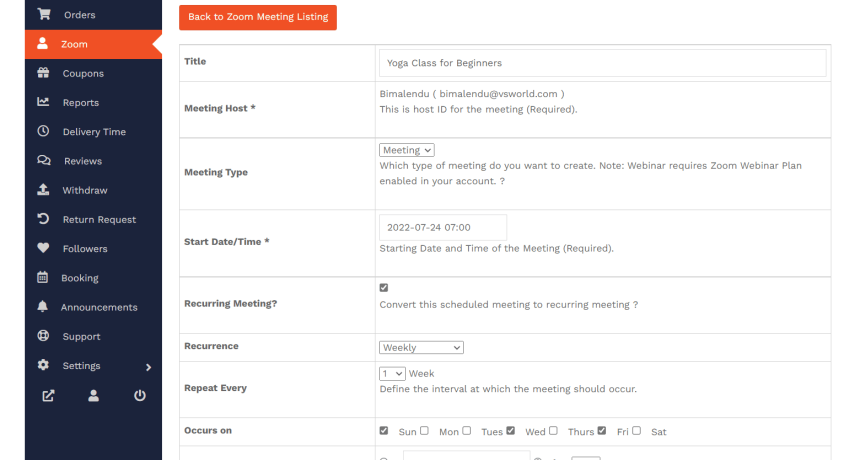
- Title: Write the Meeting Title the same as your product name, which would be for easy linking and remembering.
- Meeting Host: This is automatically selected by the HealThyRam admin.
- Meeting Type: Please select ‘Meeting’ only.
- Start Date/Time: Choose the date and time you would like to be the start of the class/event.
- Recurring Meeting: Ideally, for a class/periodic event type, it should be recurring, which means there will be multiple sessions that your customers/attendees would attend to complete the course or program. So, click on the checkbox of Recurring Meeting to see its further options/settings.
- Recurrence: Here, you can choose the occurrence type, such as Daily, Weekly, or Monthly.
- Repeat Every: Now, define the interval at which the meeting should occur. In the example, it is set to 1 week to repeat the meeting occurrences every week.
- Occurs on: Choose the day of the week you like to conduct the meeting/sessions.
- End Date: Now, put the end date. You can either choose it by a Date or by the number of occurrences; after which the course/class/event series shall finish.
- Next, are some additional and optional settings you may check or keep the default as shown in the example below.
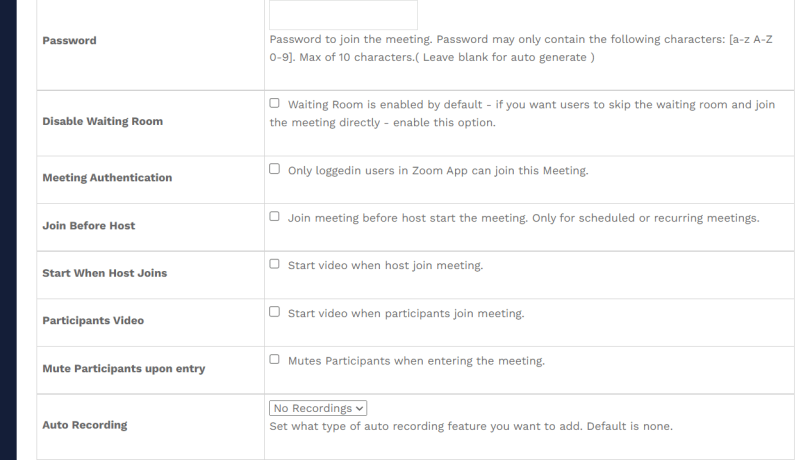
Next, do not check the Registration checkbox; that feature is not required here.
Now, we are going to SAVE the Meeting, click on Publish.
Don’t worry it is not going to be visible at the site yet, you need to next create the Product and connect this Meeting.

Once, it is processed you can see the Dashboard reload and Publish button is changed to Save.
You may change if need anything and Save.
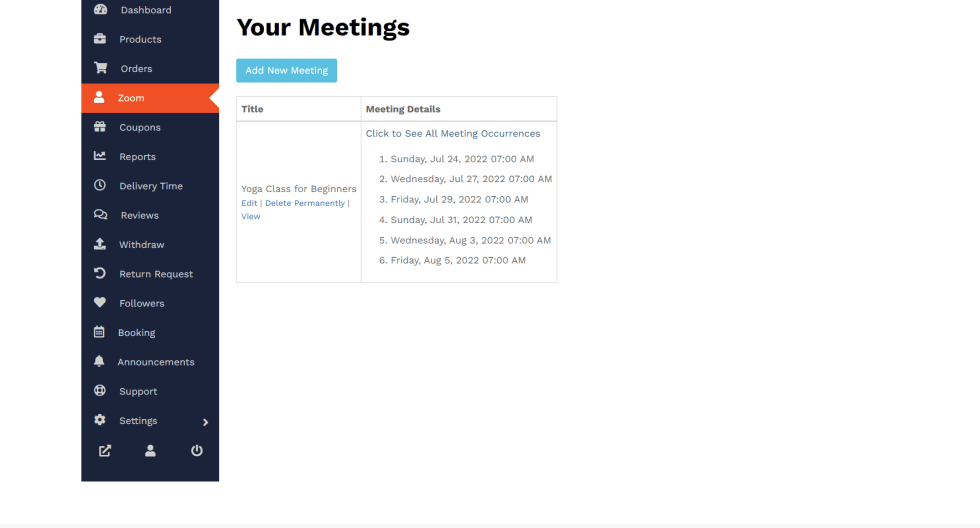
Now, navigate to Zoom tab to see the Meeting is created and can click to see all the meeting occurrences.
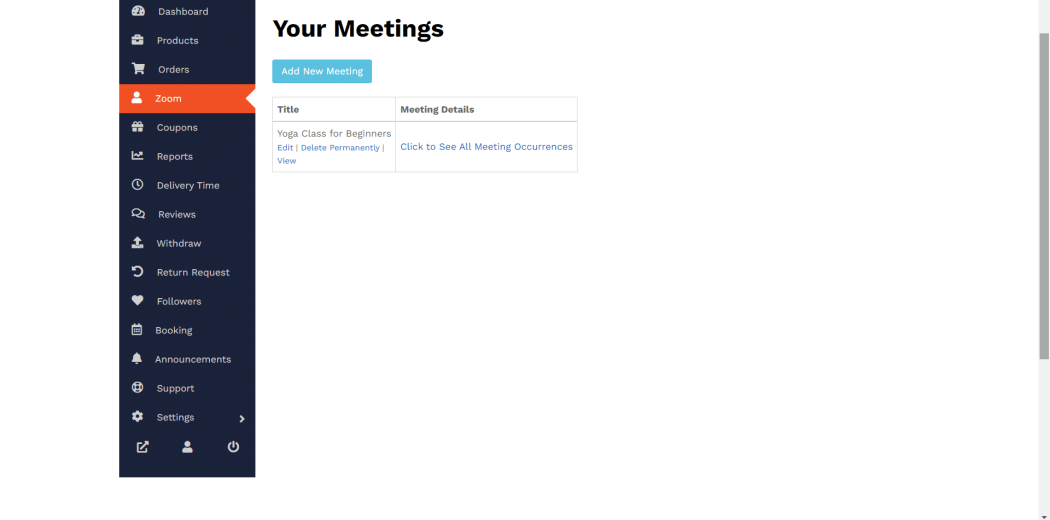
To see all upcoming occurences, tap on ‘Click on to see all the meeting occurrences’.
Step 2: Creating a Product for linking with the Meeting
To start, navigate to Vendor dashboard→ Products → Add new product

A pop-up box appears, here you should add the Title of the product, Price, upload cover image, add the product under category, tag etc. Let’s go ahead.
Title: Keep a Title of the product for your prospect customers to easily know about the product.
Price: Add a Price, currency is to be INR (Indian Rupee) here, it gets auto converted when the product is seen by a visitor outside of India in USD currency.
Discounted Price: If you like to offer a discount for a specific date-range, you can add a price under Dicounted Price cell and choose the From & To dates.
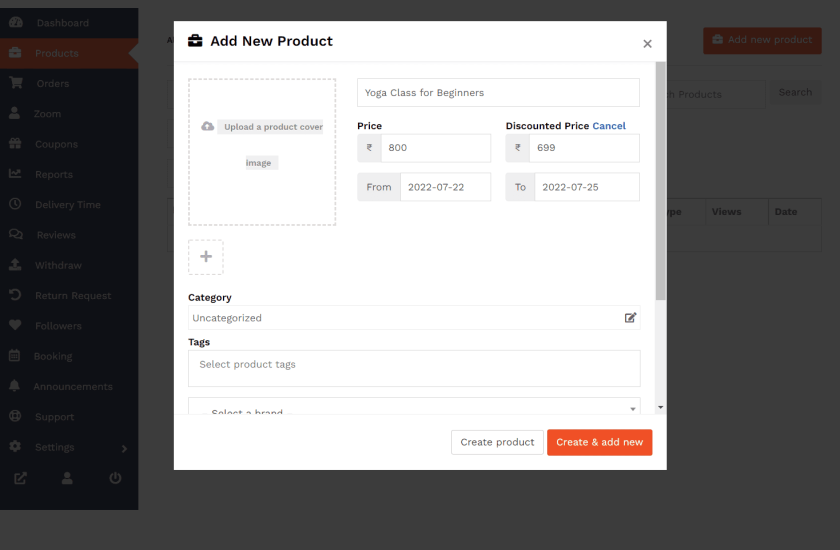
Cover Image: You must upload a cover image for your product, it should be in 600×600 pixel dimension to appear nicely on the site. If need any help here, can write to the HealThyRam support team.
Select the cover image file from your PC and select to add.

Now, can see the image set as the Cover.
You can now add other images to the gallery, click on ‘+’ below the cover image to Add gallery image; in the similar way you did to add the cover image, upload/select the image and Add to Gallery.


The gallery image is added too.

Category: Next, choose the category from an existing Category list where your product fits better. If you find not a matching category, write to the HealThyRam support team to create a Category for you.
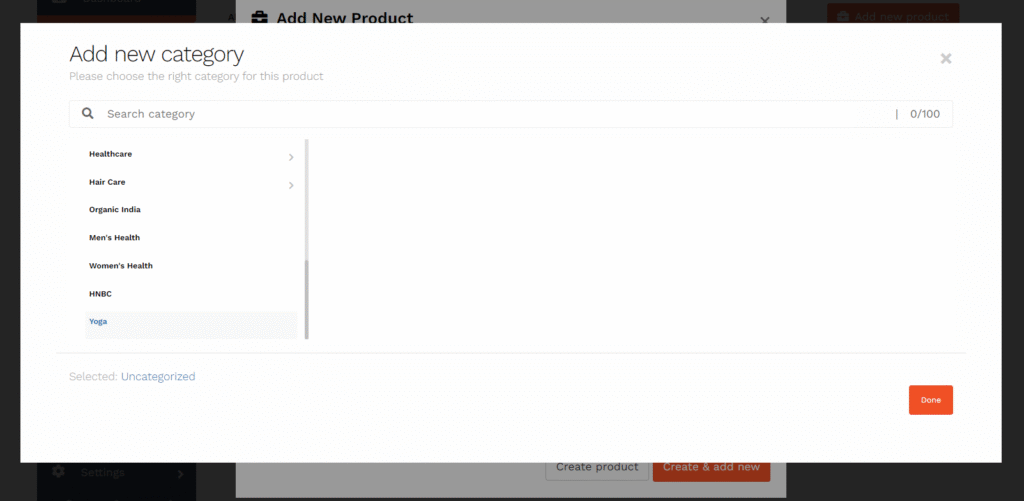

Tags: Similar to Category, choose a Tag for visitors to find your product easily.

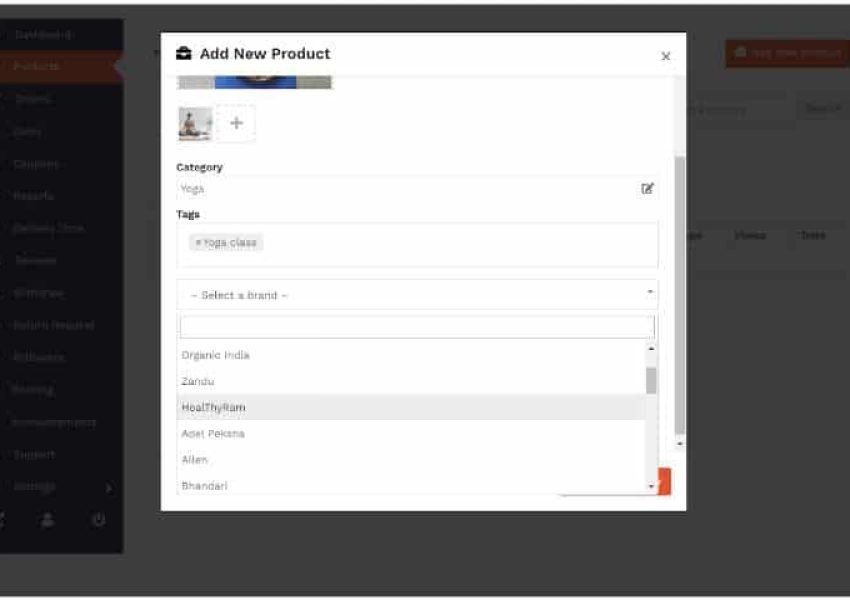
Brand: Select your Brand name, if you can’t find yours please write to the HealThyRam support team.
Description: Write description about the product to know visitor about it and its specialty.
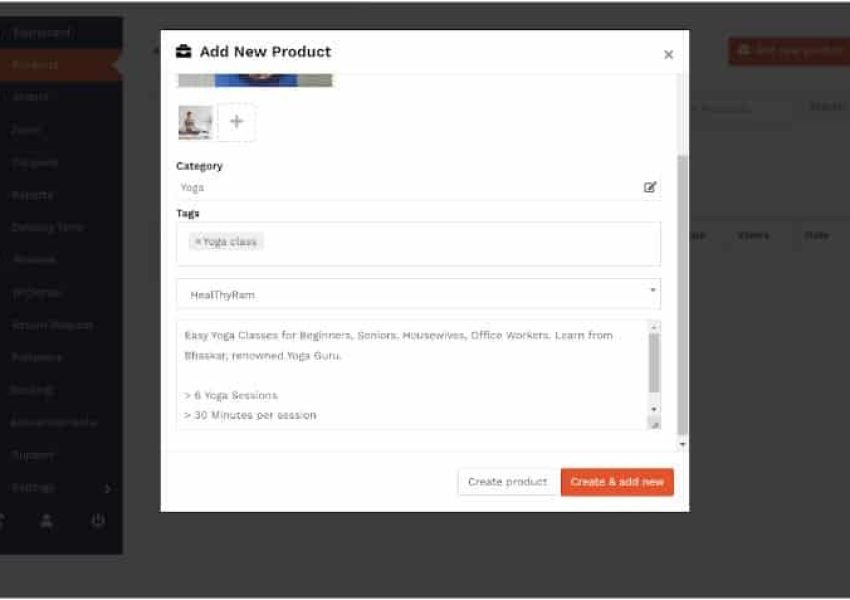
Once you are done, click on Create Product to save it and send to the HealThyRam admin team for review and approval. Please note, your product shall be visible at the store as admin approves it.
While that is happening, you should quickly need to connect the meeting link (as you created above at step 1) with the product and do some additional configuration to complete ensure the product is ready to go live.
As you notice, the product is ‘Pending Review’ means not yet published by the admin.
Let’s move ahead.
Permalink: This is the link/URL of the product, it automatically gets created as the title given, if need you can Edit to change, else can use the default link only.
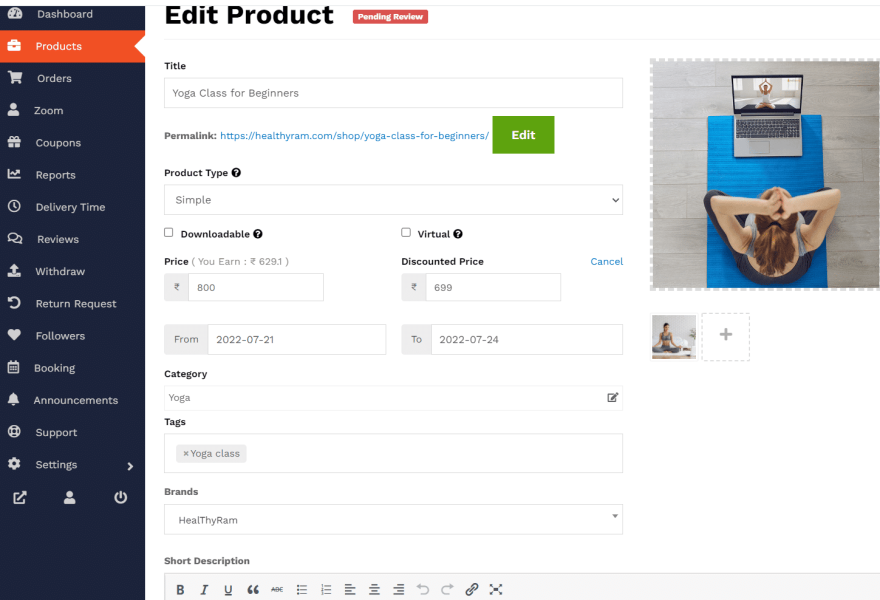
Product Type: You should set that to Simple only and must select Virtual (as this is for a virtual/online class or program)
Next, you can Add some Short Description as well, which appears to the right side of the product page. Bulleted feature text is suggested here to appear nicely and firmly establish the product features and quality at a quick glance.
Description: This text apeear towards the bottom tabs at the product page.
Step 3: Linking the Product to a Zoom Meeting
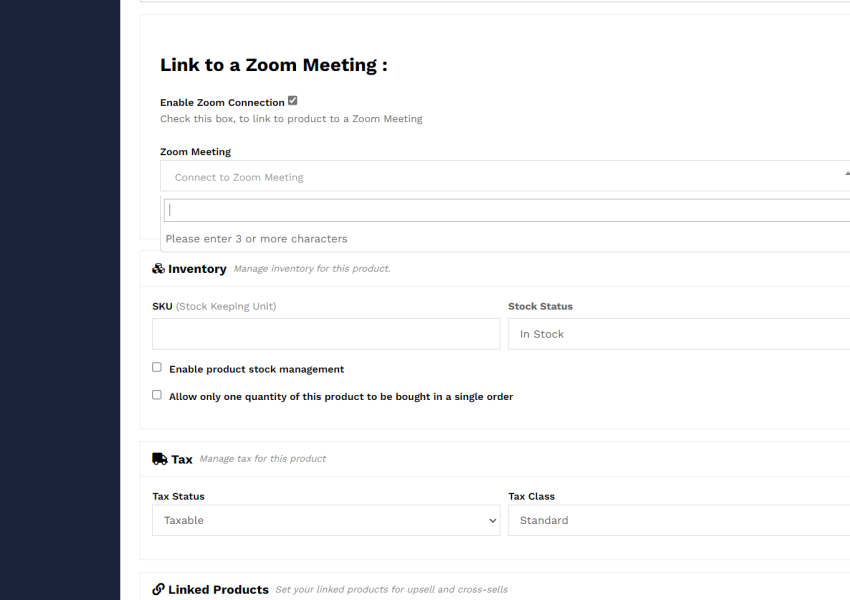
Check Enable Zoom Connection search the Zoom meeting you earlier created at Step 1, just type the first word of that and then can see the Meeting name appears and then select that.
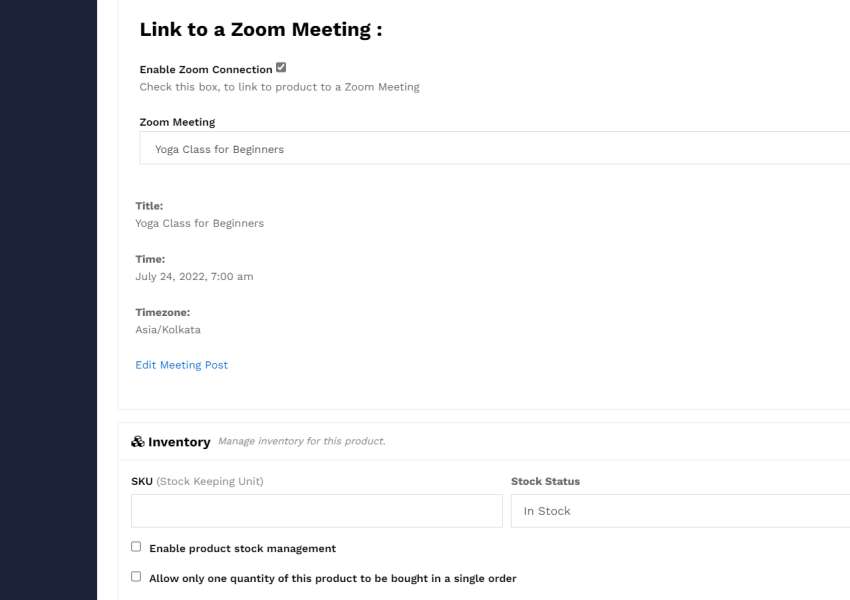
Now, you can see the details of that connected Zoom Meeting.
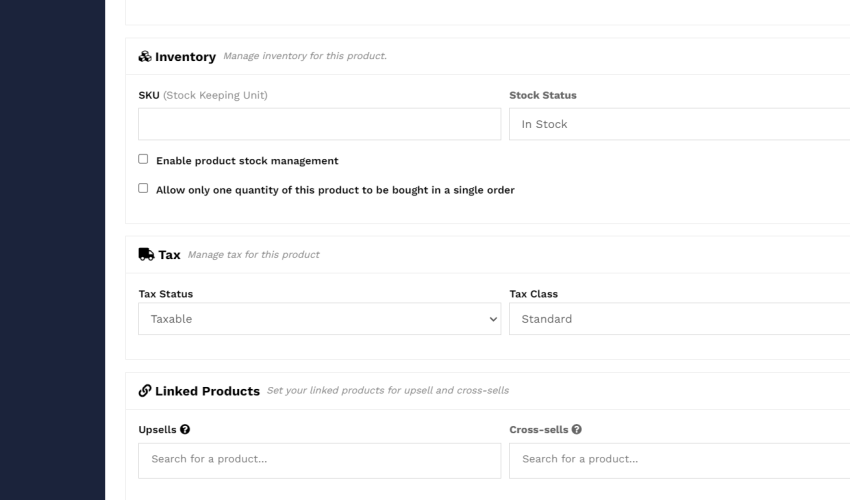
Next, you should keep the other setting as the default or skip for inventory, tax, attribute.
If you like you can select your other product to appear along with this product as Upsells, Cross-sells.
SKU unit, recommend to keep 20-25.
Tax: Choose product as Taxable if applicable for your product and set Tax Class as Standard
The RMA option, not applicable for virtual products.
Next, you can add a Purchse Note if you like to share some additional information for them to receive in the order email, skip if not needed.
Enable product reviews, should check this to know how are your customers feedback to help influence others.
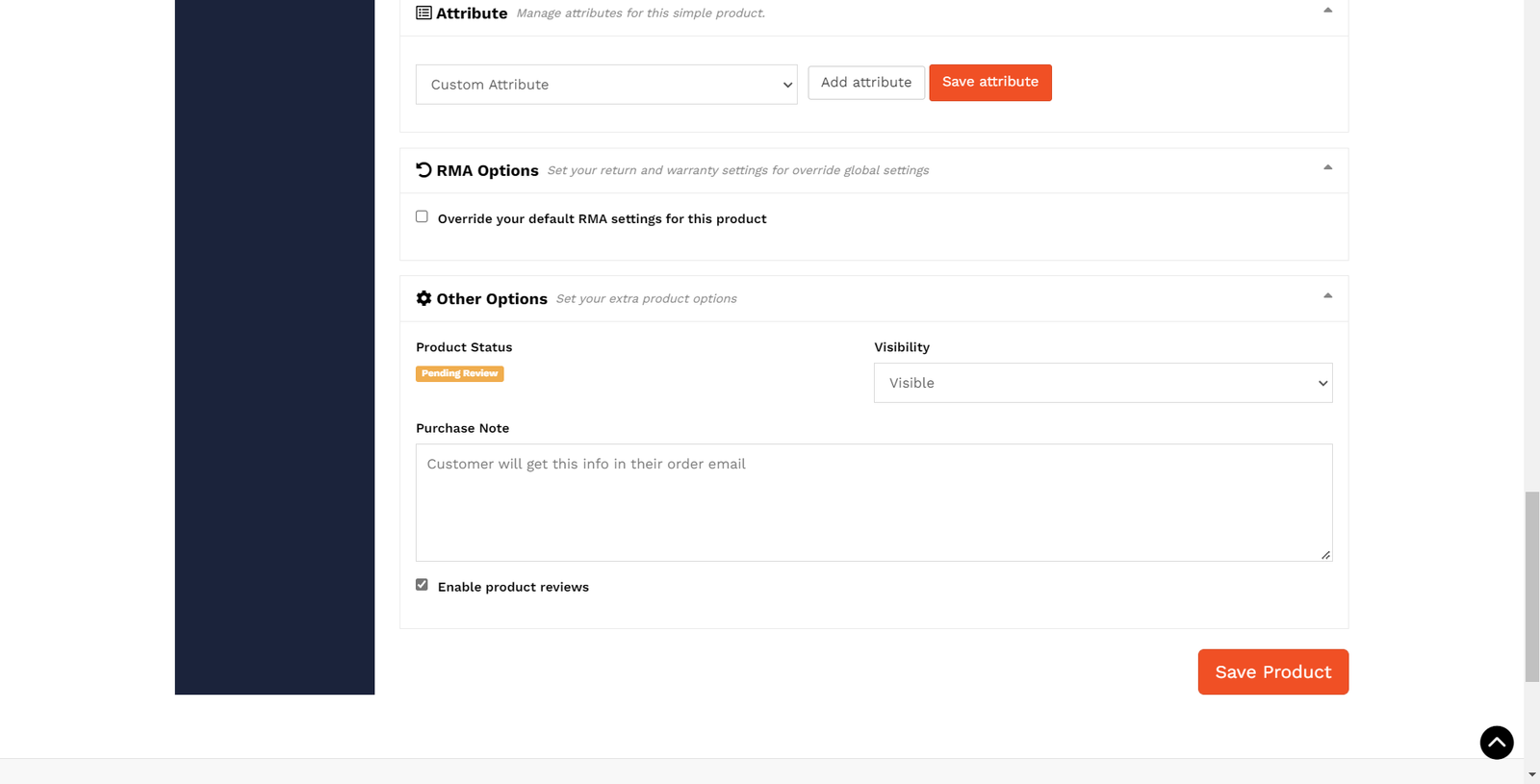
Once done, click on Save Product to finally save it.
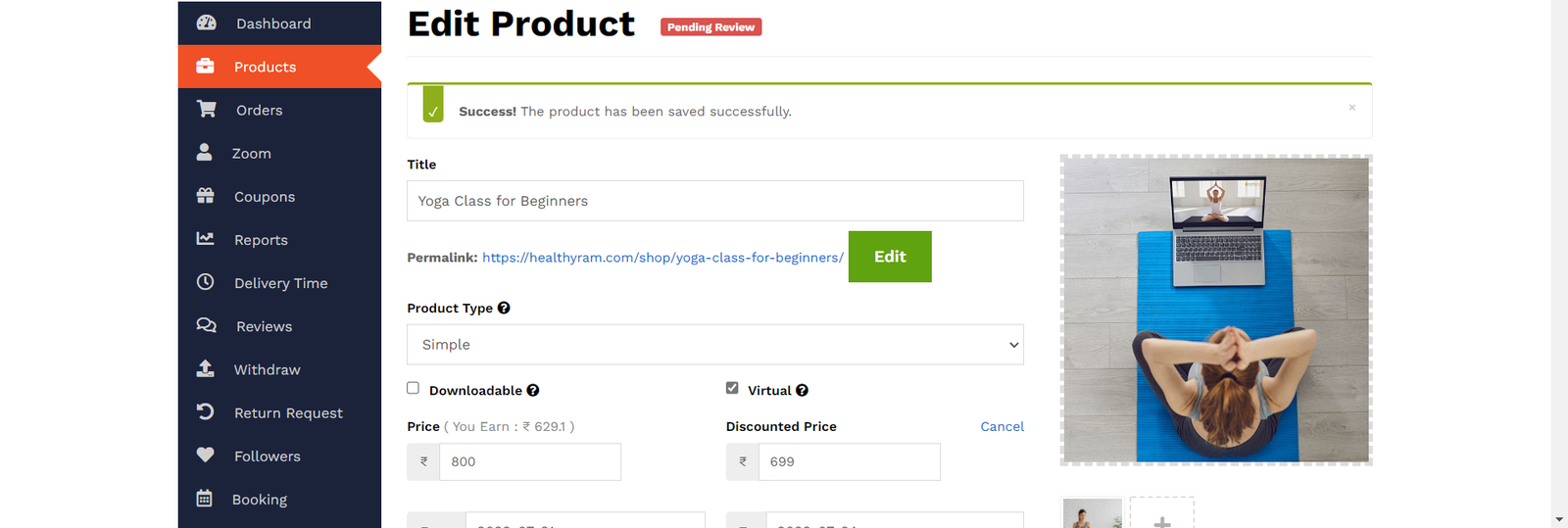
Now, your product is saved and can see the succes message at the top of your dashboard.
You can go back to the Products tab and see the product created and its status if is approved by Admin. If you see the status is changed from Pending Review to Online (green colour) means the product is now live at the site and your store.
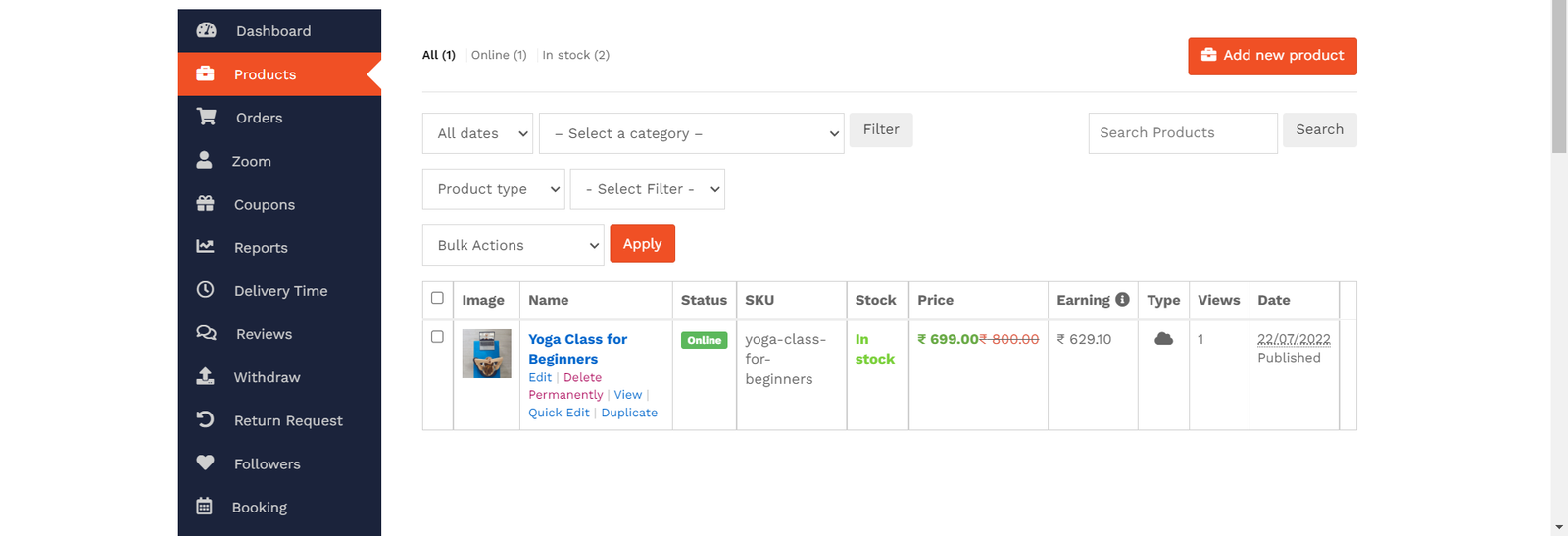
You can click on View to see the product as shown below. Also, can use the other option for the product like Edit, Quick Edit to do some changes to the product; or can Duplicate it to use the same configuration and create a new product.
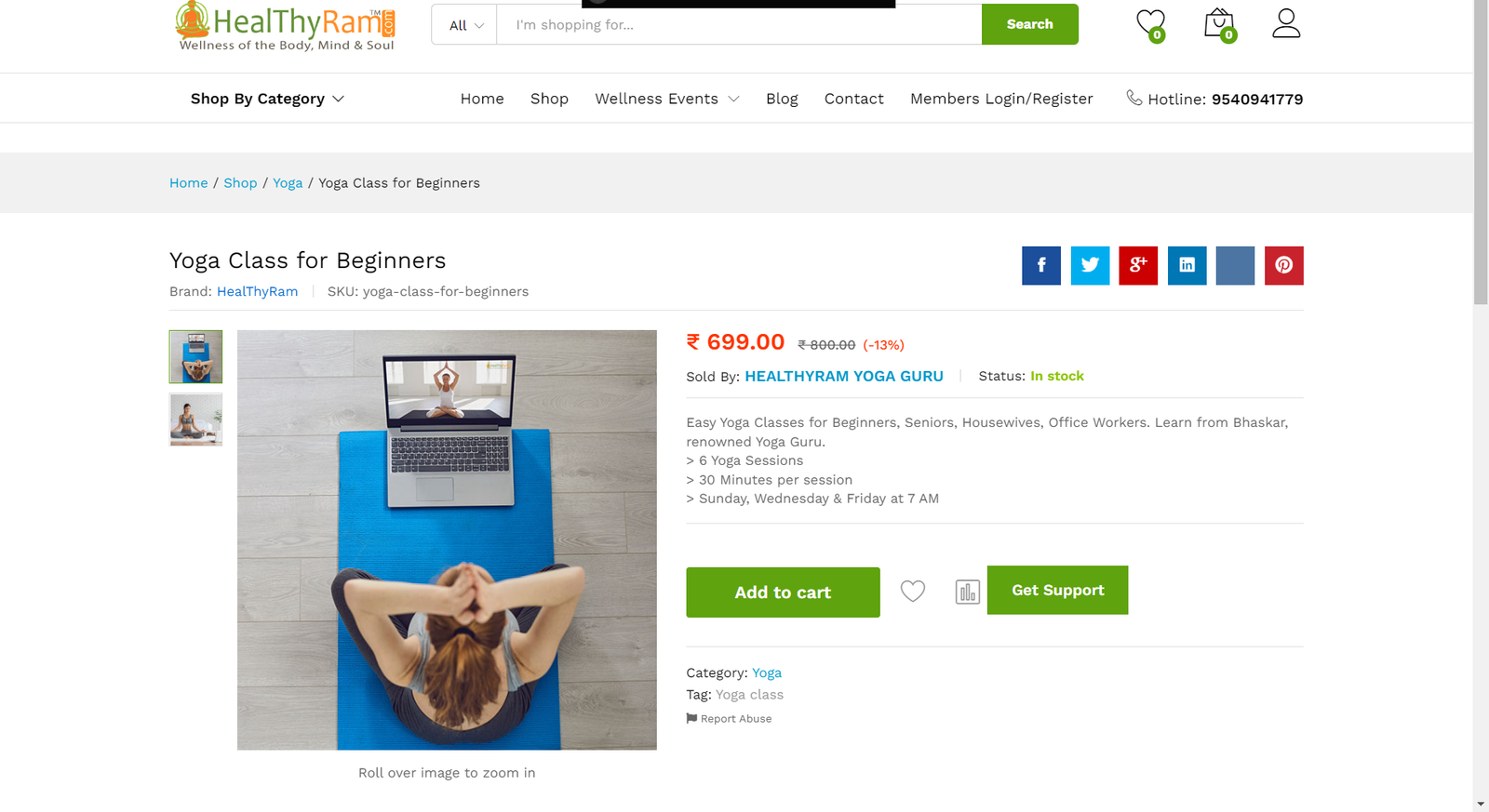
An example of Prouduct Page
Step 4: See & Manage Orders
Navigate to the Orders tab at the Vendor Dashboard, to see of all your orders and its status.
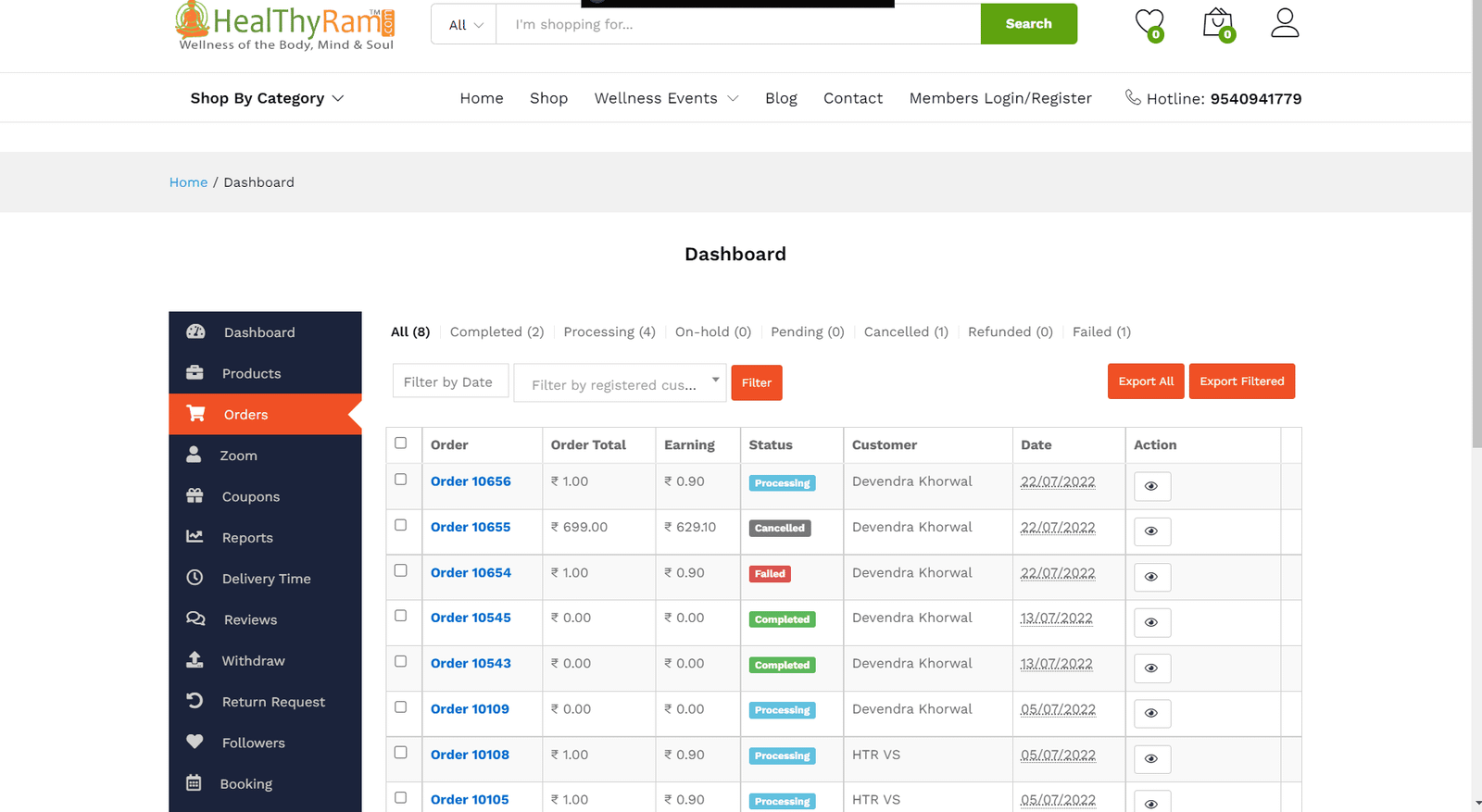
Click on the ‘eye’ icon in the Action column for more details about an order.
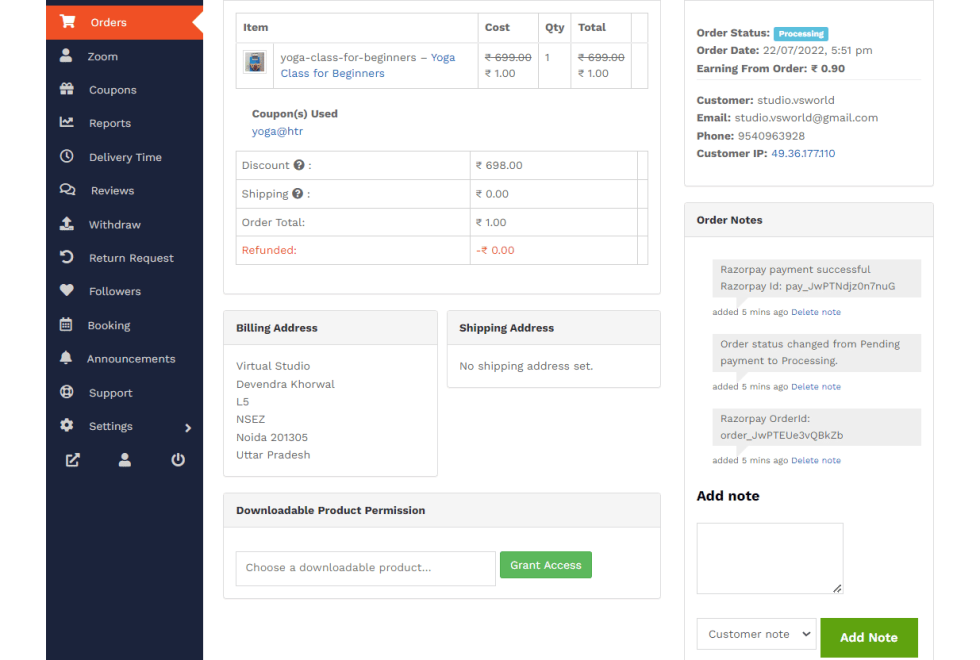
This is how an Order looks like, you can see all the details – sold price, customer details who purchased your product.
You can also see here some of the auto-notes on the order, like on the successful payment etc.. And can add a note as well to the customer if need.
Downloadable Product Information, Tracking Number are not relevant to your product, so can ignore them.
Step 5: Conducting online session or class via Zoom Meeting
Next, you would need to prepare yourself to join the Zoom Meeting link for the booked or purchased classes as per the schedule.
It is suggested to open the Zoom Meeting link at least 5-7 minutes before the scheduled time to and help avoid any last minute issues and ensure you could open the Zoom meeting room properly and test your microphone & camera; also to allow your customer/attendee to join the meeting on-time
Though you can join the Zoom meeting from your mobile/tablet device but it is recommended to use laptop/desktop with wired internet connection and must use earphone/headset for better audio and communication.
If you have not used Zoom Meeting earlier, please download the Zoom app from here and take a quick look at this Video tutorial on using the Microphone and Camera functionalities at the Zoom Meeting.
What you need to join the Zoom Meeting?
- A laptop/desktop internet (recommended) or Mobile/Tablet
- An internet connection – broadband wired (recommended) with min 4-5 Mbps (up/down) bandwidth or 4G/LTE network
- Speakers and a microphone – headphone/earphone (recommended) or wireless Bluetooth
- A webcam or HD webcam – built-in, USB plug-in
Opening a Zoom Meeting:
To open the Zoom Meeting, navigate to the Zoom tab at the Vendor Dashboard, and click on the View link of a particular Zoom Meeting, as per the occurrence schedule.
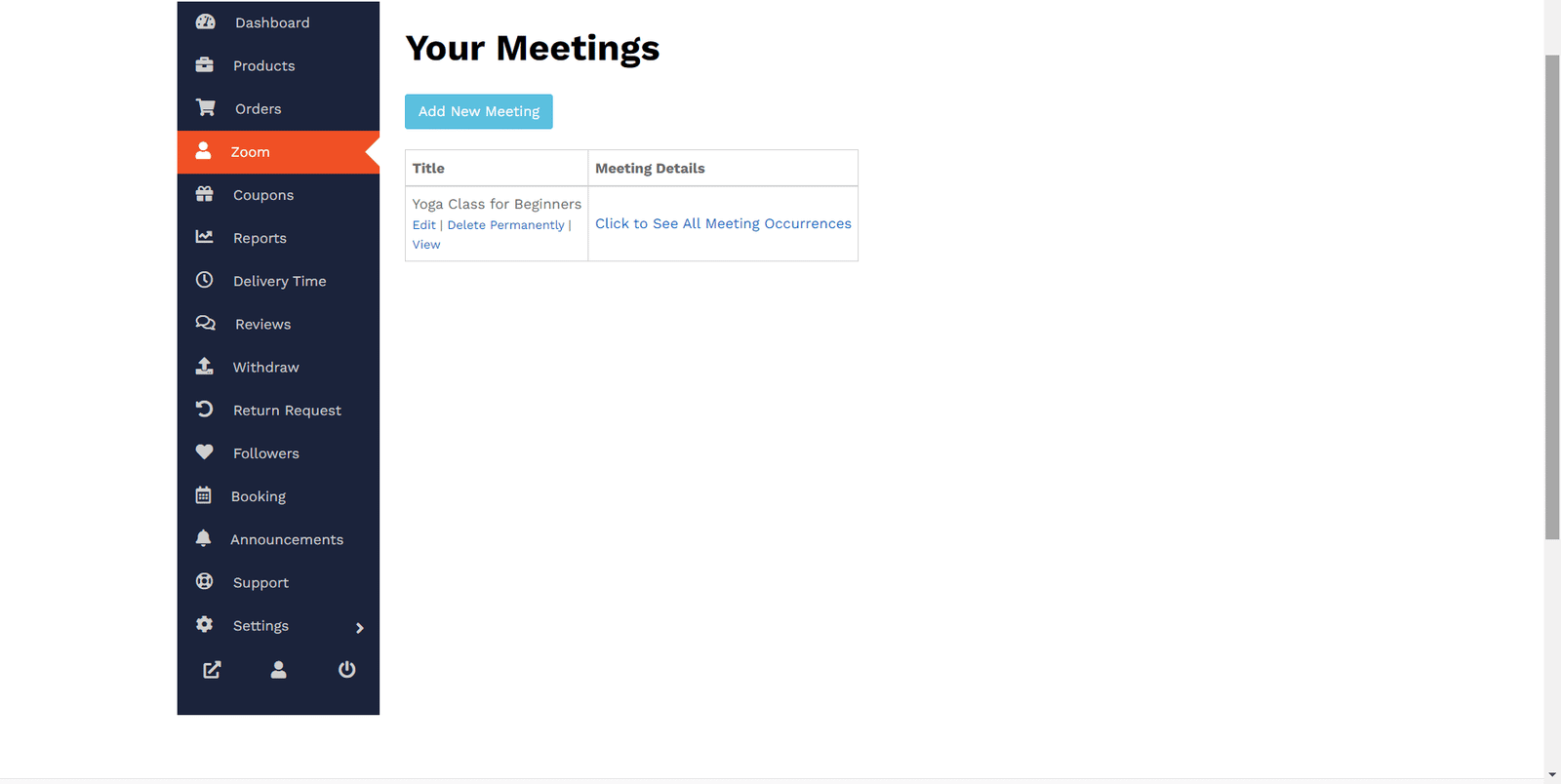
After you click on ‘View’, it opens this page where you can see the time left to the session/occurence.
When the time comes, click on the Start Meeting button to start the Zoom meeting.
Please remember to wear your earphone/headset before you start/launch the Zoom meeting.
Next, you can see a Zoom page appears, if you havn’t installed the Zoom app it would ask you download and install it.
Or, if your device already has Zoom app, it would ask you Launch Meeting. (see below)
Click on Launch Meeting to open the Zoom Meeting


Zoom App loads and connects to the Zoom meeting

Click on Join with Computer Audio to connect your microphone/speaker. Next, click on Start Video to start your camera.
Need any help, watch this Video tutorial on using the Microphone and Camera functionalities at the Zoom Meeting.

You can see a pop-up notification at your screen when the customer tries to join the Zoom meeting. Please Admit to allow him/her join the session.

You can also use the Chat option to text-chat in case need to guide or share any instruction to the attendee/customer.
When the meeting is over, click on red coloured End button at the bottom- right corner and select End Meeting for All to close the meeting for who all have joined.

Creating One-Time Consultancy [User-determind Event]
Usable for ‘Booking a one to one Yoga class’, ‘Doctors Appointment’ or something similar.
Here the visitor comes to the site looks at the option to create an appointment/booking and after successful purchase a Zoom meeting is automatically created, which means you need to create a Zoom meeting in advance.
Step 1: Add New Booking Product
Navigate to Vendor dashboard→ Booking → Add New Booking Product
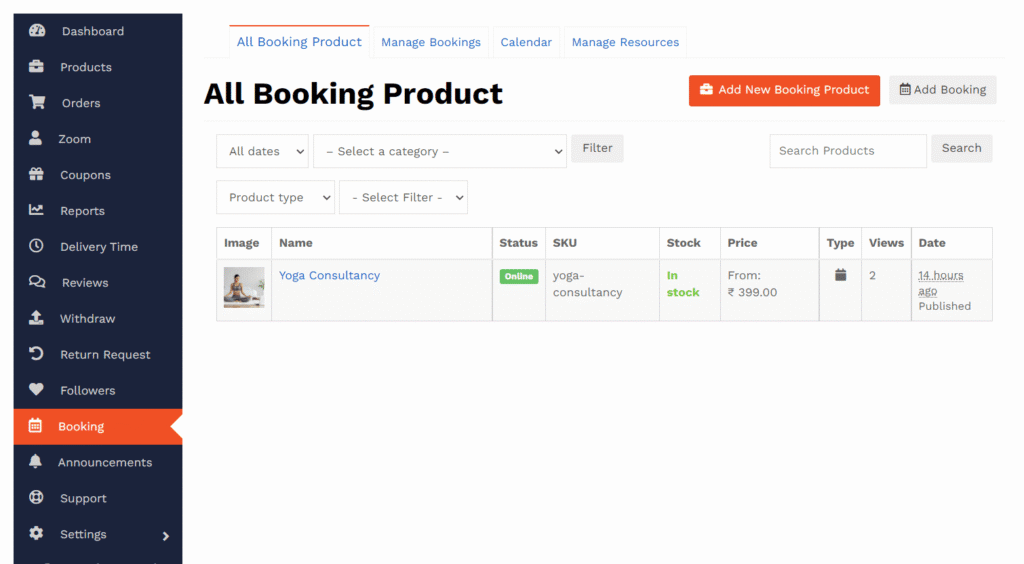
Now, add the details about your product.
Title: Keep a Title of the product for your prospect customers to easily know about the product.
Virtual: Check the product type as Virtual. (applicable for online consultancy product)
Category: Next, choose the category from an existing Category list where your product fits better. If you find not a matching category, write to the HealThyRam support team to create a Category for you.
Tags: Similar to Category, choose a Tag for visitors to find your product easily.

Cover Image: You must upload a cover image for your product, it should be in 600×600 pixel dimension to appear nicely on the site. If need any help here, can write to the HealThyRam support team.
Select the cover image file from your PC and select to add.

Now, can see the image set as the Cover.
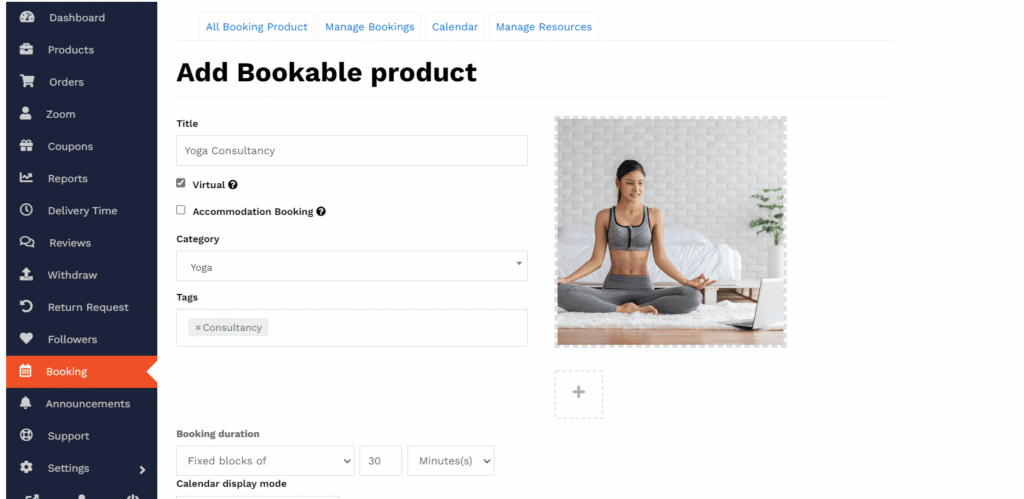
You can now add other images to the gallery, click on ‘+’ below the cover image to Add gallery image; in the similar way you did to add the cover image, upload/select the image and Add to Gallery.

Booking Duration:
This field allows you to define a duration of your product. The duration of each product your customers will be buying. Here, since we would be using this for a Consultancy for a limited timeframe,

so suggested to keep the duration type as “Fixed blocks of” and 30 minutes/60 minutes, since we would be using Zoom meeting so the unit should be in Minutes.
Calendar display mode:
The calendar on the product page displays availability on a calendar. So this field simply on/off for the calendar be already expanded or appear as a clickable button.
Please keep it as “Calendar always visible”.

Next, please keep the following options unchecked or keep the default settings (as shown below) to maintain the uniformity of the HealThyRam site’s seetings/policies.

Now, move ahead to the next important section, availability which allows your customers to book slot accordingly. Below is an example how you may set your availability.

Let us understand each of these options.
Block:
Understanding this makes the following things a lot more easier. A block is the minimum unit of your product which you are making available for booking. As most booking products are unlike regular products, which are not time dependent. But booking products are time dependent, subject to maintenance and do not have any shipping.
Max bookings per block:
This field allows you to book the product multiple times within the available time frame. Say, you want only 1 person joining a session/appointment, so keep it 1.
Minimum booking window:
It is the minimum duration of time during which a customer will have to book your next available appointment. Say, your next available schedule is on 17th of this month, but you want at least 2 days before that day to allow for booking.
If today is March 14 and you set minimum block bookable to 2 days into the future, then the first date a customer could book would be March 17. The same applies to the maximum date bookable.
Maximum booking window:
The maximum range of available booking for the product from the next available date. So, if your next available booking for your product is on 17th this month and the maximum booking window is 7 days, then on the product page a customer will be shown booking availability up to 24th.
Here is an example on a calendar how these dates will work.

Require a buffer period of:
The unit for buffer period changes automatically with your block unit duration.
Based on the unit of time set for the booking (minutes, hours or days), you can specify a period of time after a bookable slot that is unavailable for anyone else to book. For example, if you sell appointments in 1-hour blocks and wish to have a break of 1 hour between them, you can specify a buffer period.
All dates are:
Depending on how you want to set up availability, this option allows you to set available by default or not available by default. “Available by default” means all blocks are available and you can specifically turn some off with rules, where “not available by default” means all blocks are not available and must be turned on through availability rules.
Check rules against:
You have two options:
All blocks being booked – This checks all available blocks within a duration. For example if a customer chooses to book for 5 days and 1 block is equal to 1 day, it will check availability for all 5 days.
Starting block only – This checks the first block the user selects. For example if a customer chooses to book for 5 days and 1 block is equal to 1 day, it will only check availability for the first day.
First Blocks starts at…
You can set start time of your first block.
Set availability range
Each field is tagged with a (?) hint text which explains each field.
Fix the range for your booking availability according to days months hours or minutes and many other ways. You can add multiple Ranges and reorganize priority by dragging too.

If Bookable is set to ‘No’ for a Time/Date range means that range shall not be available for booking. In the example, you can see the Time Range from 19:00 in the evening to 10:00 in the morning is not available for booking.

You can read from the image, how the Priority number works. The lover the priority number the earlier that applies.

Further, you can read below detailed guide on setting availability rules.
You can set up specific availability rules, such as availability for:
- Months
- Day of the week
- Time
- Specific date
To add a rule, select Add Range:
A new row is created, where you can choose a range type, from/to, whether it’s bookable or not (yes or no) and a priority number.

The from/to values differ based on the range type:
- Date range – from/to will show a datepicker/calendar selection field
- Range of days – from/to will show a dropdown of days of the week (Monday to Sunday)
- Range of months – from/to will show a dropdown of months (January to December)
- Range of weeks – from/to will show a dropdown of weeks (1 to 52)
- Time ranges – from/to will show time inputs
- Date Range with time – period with a start date/time and an end date/time. Range applies from start time on the start day to end time on the end date.
- Date Range with recurring time – set based on a custom date range. Range is repeated on each day in the date range.

Note that the time ranges are not opening hours, but booking hours. If you offer 1-hour time blocks and your shop is open from 9:00 am to 6:00 pm, your last booking is at 5:00 pm, not 6:00 pm.
By default, Global availability rules take priority over product level availability rules and product availability rules take priority over resource priority rules. The order can be changed using the priority numbers. A lower priority, irrespective of context, overrides any other context with higher priority number. For example, a 9 will always override 10, even if 10 is on the Global level.
If multiple rows have the same priority, the rules higher on the list will take priority.
Rows can be removed by clicking the X on the far right, or dragged and dropped to sort using the handle on the far left.
Also be aware that availability options can be set up globally if all bookable products share some dates.
Costs for Bookable Products:
The two main costs you can add are Base cost and Block cost.
- Base cost is applied regardless of a customer’s choices on the booking form.
- Block cost is the cost per block that was assigned in the General tab. If a customer books multiple blocks, this cost is multiplied by the number of blocks booked.
Display cost does not affect the actual cost of the product. In the example above, the product page displays 300 on the frontend. The cost is displayed to the user on the frontend. Leave blank to have it calculated for you. If a booking has varying costs, the lowest available cost is shown and is prefixed with the word “From:”
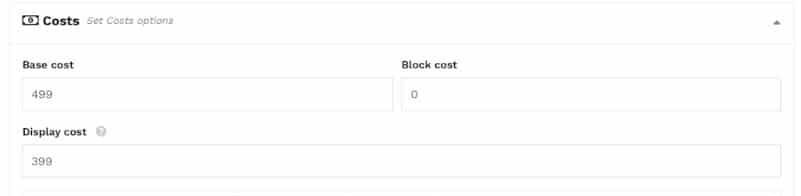
Beneath the display cost, you have an area where you can define extra costs. This works similar to availability. Click Add Range to begin:
A row appears where you can input the range type, from/to and cost:

The from/to values differ based on the range type:
- Date range – from/to will show a datepicker field
- Range of months – from/to will show a dropdown of months (January to December)
- Range of weeks – from/to will show a dropdown of weeks (1 to 52)
- Range of days – from/to will show a dropdown of days of the week (Monday to Sunday)
- Time range – from/to will show time inputs
- Date range with time – set based on a custom date range
- Persons count – from/to will show number inputs
- Block count – from and to will show number inputs
Base cost and Block cost can be added, subtracted, multiplied or divided by the amount you enter. Since version 1.10.9, you can also directly set the costs applied for the rule.
Rows can be removed by clicking the X on the far right, or dragged and dropped to sort using the handle on the far left.
If multiple rows match, all additional costs are used.
Description: Write description about the product to know visitor about it and its specialty.
Next, you can Add some Short Description as well, which appears to the right side of the product page. Bulleted feature text is suggested here to appear nicely and firmly establish the product features and quality at a quick glance.
Step 2: Enable Zoom Meeting
Check Enable Zoom Meeting, this is create a Zoom Meeting link when the product is booked by a customer.
Default Host: Choose your “Company/Brand Name” from the list; donot select any other Host Name other than yours as that would create conflict and you shall not be able to Host/Join the Zoom meeting.
You should keep the other options – Allow Join Before Host, Enforce Login, Meeting Passcode as it is or blank.


And, finally Save Product to save all the settings and informations and also to send for review to the HealThyRam Admin team.
You can see the succes message at the top of your dashboard, confirming the product information is saved successfully.
You can go back to the Booking tab o Click on All Booking Product at top menubar to see all the products created and its status if is approved by Admin.

If you see the status is changed from Pending Review to Online (green colour) means the product is now live at the site and your store.

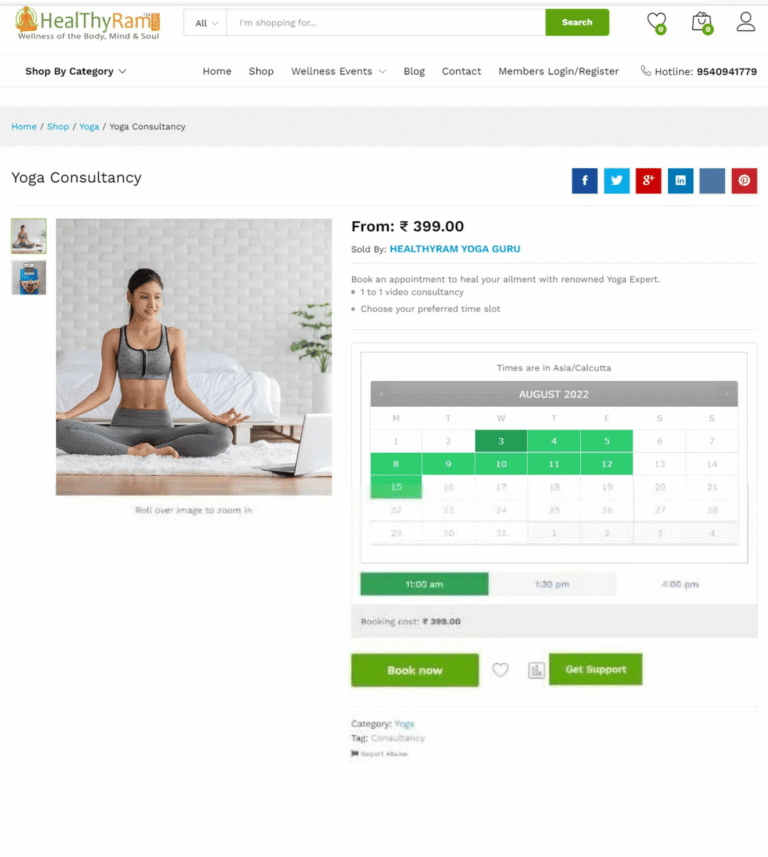
Mouse over on the Product Name to see options to manage the product; you can click on View to see the product as shown below. Also, can use the other option for the product like Edit, Quick Edit to do some changes to the product; or can Duplicate it to use the same configuration and create a new product.

Step 3: View/Manage Bookings
Now, to see all your Bookings for Appointment/Consultancy type product, go to Booking > Manage Bookings.
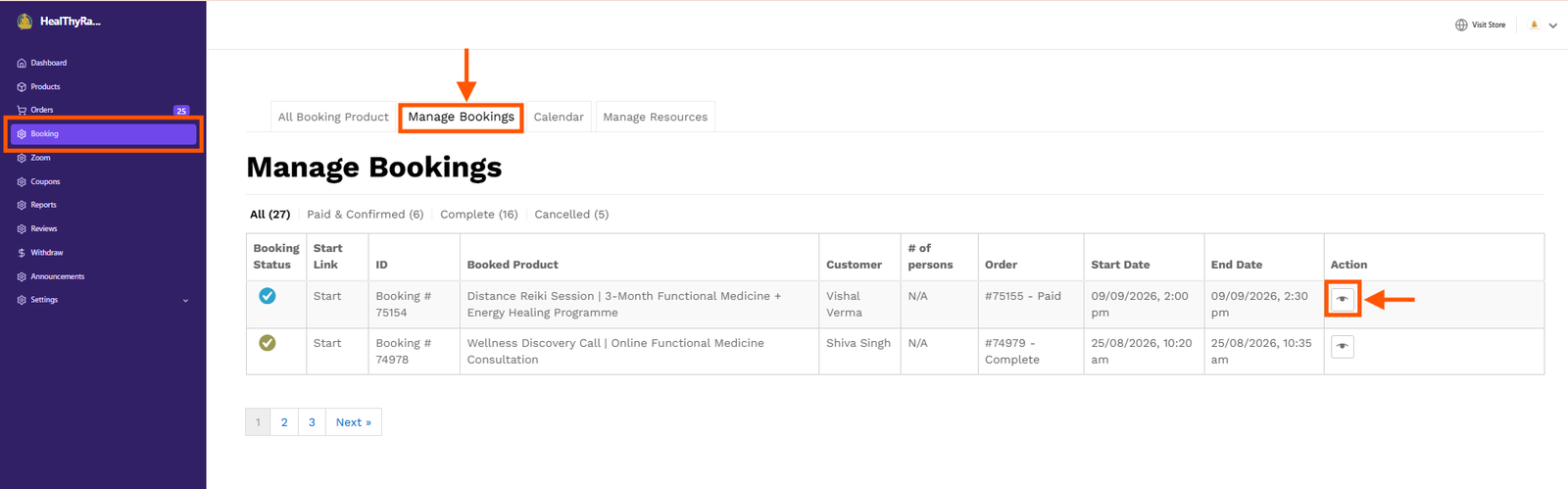
You can view booking on Calendar view as well
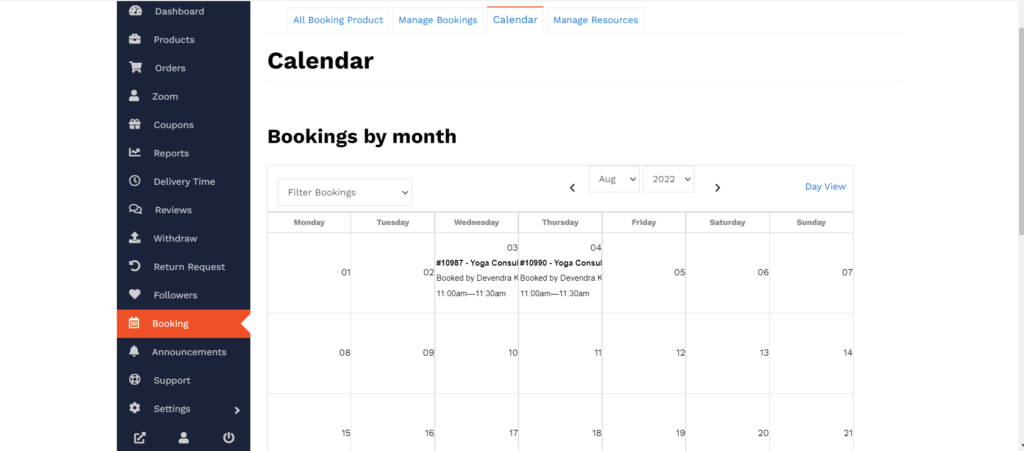
On clicking on a Booking from the calendar, you can see the booking details for the booking which includes the booking status, schedule, joining link, customer details etc.
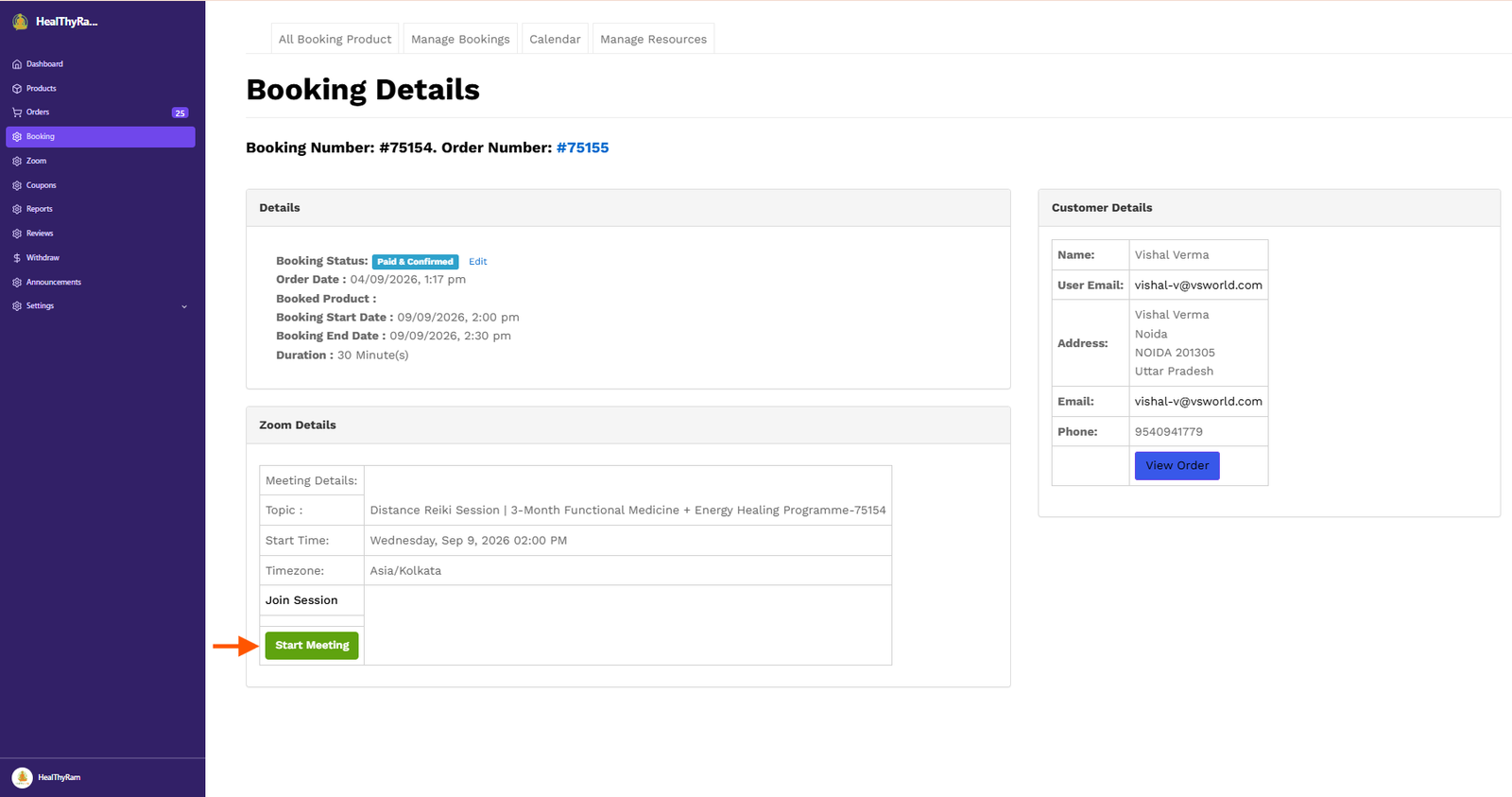
Step 4: Launching Zoom Meeting to meet the customer/seeker
Next, you would need to prepare yourself to join the Zoom Meeting link for the booked meeting/appoinment as per the start time shows in the booking order.
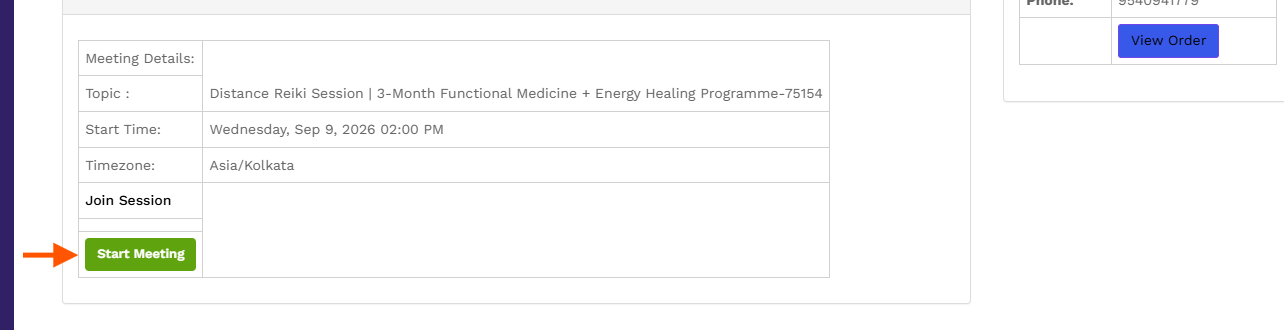
It is suggested to open the Zoom Meeting link at least 5-7 minutes before the scheduled time to and help avoid any last minute issues and ensure you could open the Zoom meeting room properly and test your microphone & camera; also to allow your customer/attendee to join the meeting on-time.
Though you can join the Zoom meeting from your mobile/tablet device but it is recommended to use laptop/desktop with wired internet connection and must use earphone/headset for better audio and communication.
If you have not used Zoom Meeting earlier, please download the Zoom app from here and take a quick look at this Video tutorial on using the Microphone and Camera functionalities at the Zoom Meeting.
What you need to join the Zoom Meeting?
- A laptop/desktop internet (recommended) or Mobile/Tablet
- An internet connection – broadband wired (recommended) with min 4-5 Mbps (up/down) bandwidth or 4G/LTE network
- Speakers and a microphone – headphone/earphone (recommended) or wireless Bluetooth
- A webcam or HD webcam – built-in, USB plug-in
Let’s start the Zoom Meeting,
When the time comes, click on the Start Meeting button to start the Zoom meeting.
Please remember to wear your earphone/headset before you start/launch the Zoom meeting.
Next, you can see a Zoom page appears, if you havn’t installed the Zoom app it would ask you download and install it.
Or, if your device already has Zoom app, it would ask you Launch Meeting. (see below)

Click on Launch Meeting to open the Zoom Meeting

Zoom App loads and connects to the Zoom meeting

Click on Join with Computer Audio to connect your microphone/speaker. Next, click on Start Video to start your camera.
Need any help, watch this Video tutorial on using the Microphone and Camera functionalities at the Zoom Meeting.

You can see a pop-up notification at your screen when the customer tries to join the Zoom meeting. Please Admit to allow him/her join the session.

You can see the name of the customer in the meeting room as you admits. Wait until the customer ‘Join the Audio’ and the message ‘He/she is connecting to audio and can’t hear yet’ disappears.
Once, that message disappears you can start talking to him/her.

You can also use the Chat option to text-chat in case need to guide or share any instruction to the attendee/customer.

When the meeting is over, click on red coloured End button at the bottom-right corner and select End Meeting for All to close the meeting for who all have joined.
View Orders
Navigate to the Orders tab at the Vendor Dashboard, to see of all your orders and its status.
Click on the ‘eye’ icon in the Action column for more details about an order.
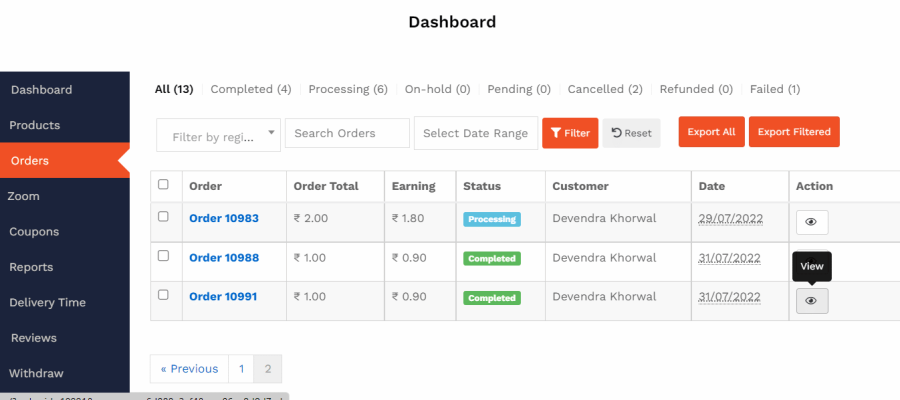
This is how an Order looks like, you can see all the details – sold price, customer details who purchased your product.
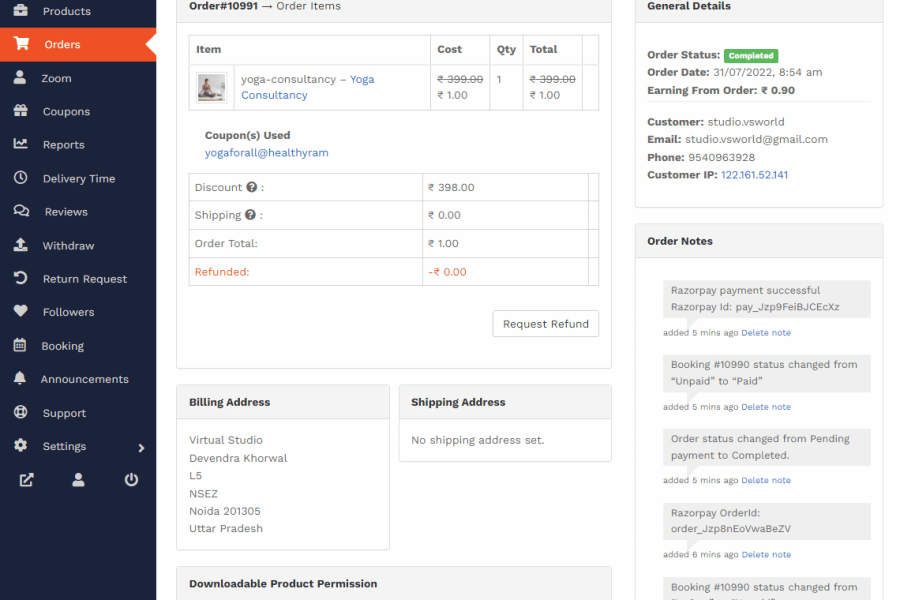
You can also see here some of the auto-notes on the order, like on the successful payment etc.. And can add a note as well to the customer if need.
Downloadable Product Information, Tracking Number are not relevant to your product, so can ignore them.
Edit an Existing Product
Wellness Vendors can update the details of their existing products, including pricing and other product information, directly from the HealThyRam Dashboard.
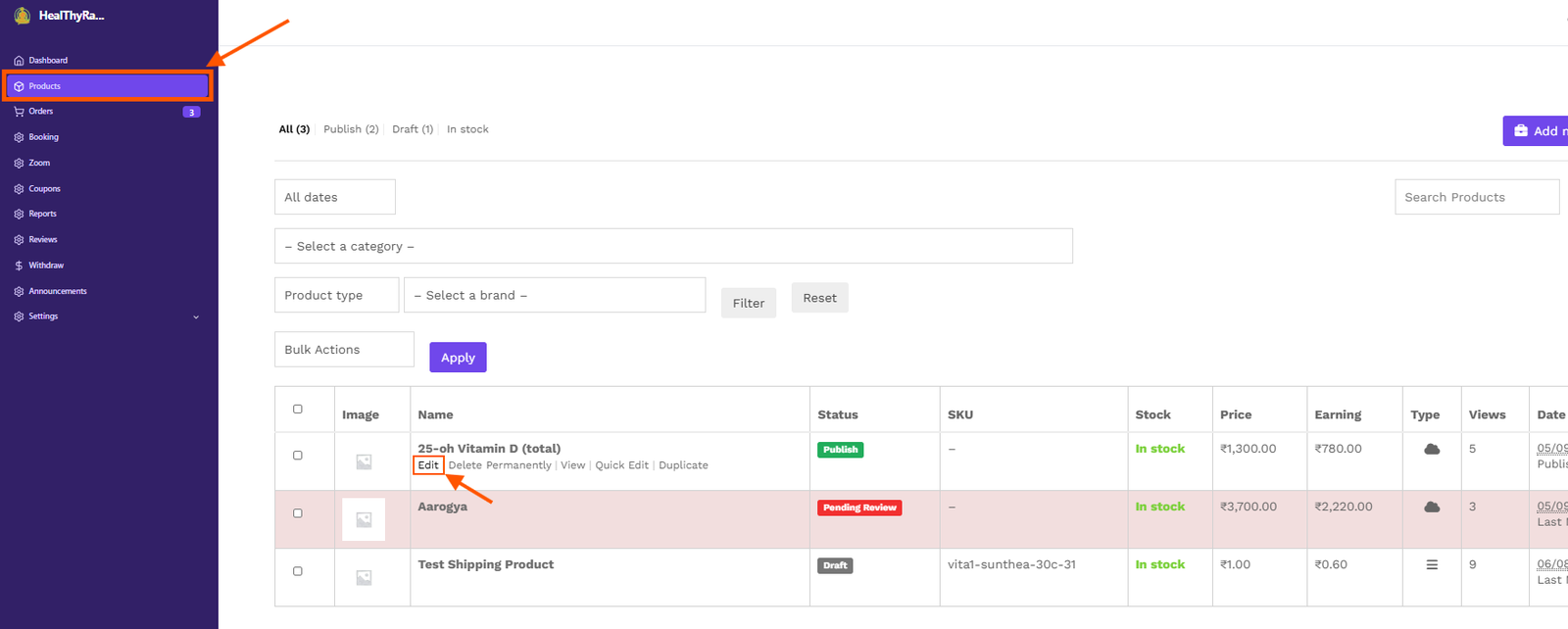
For Simple Products
For example: physical products, wellness products, etc.
- Log in to your HealThyRam Dashboard.
- From the menu, go to Products.
- Find the product you want to update and click Edit.
- Update the price or make any other required changes.
- Scroll down and click Save.
Edit a Booking Product
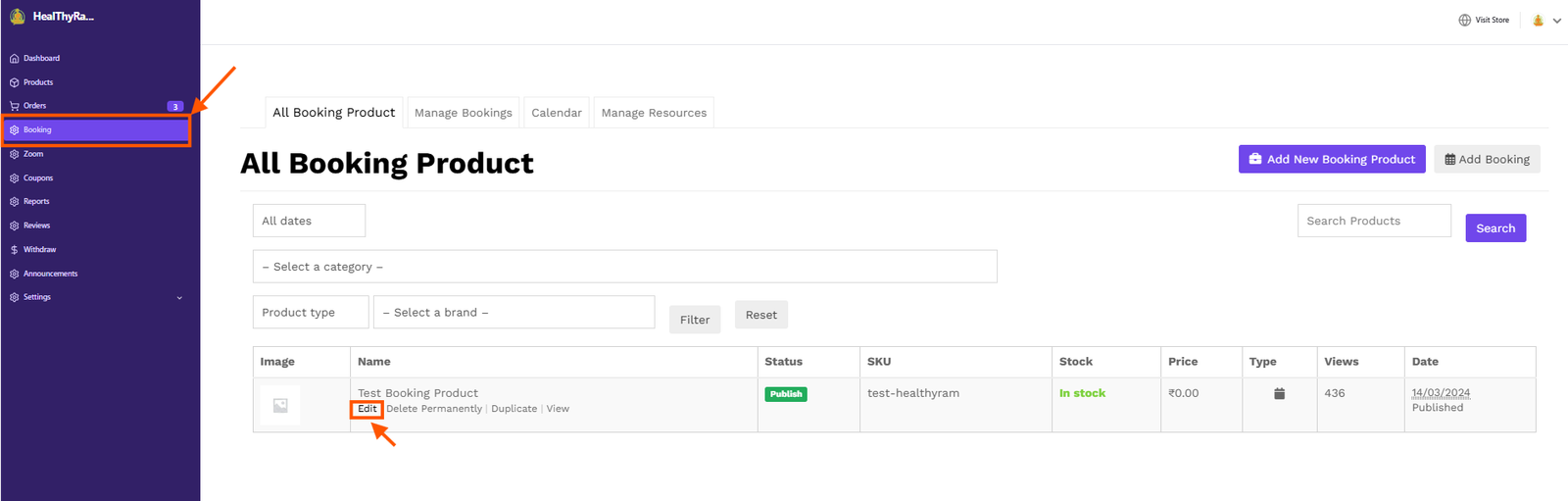
For example: consultations, classes, sessions, and other appointment-based services.
- Log in to your HealThyRam Dashboard.
- From the menu, go to Booking.
- Find the booking product you want to update and click Edit.
- Update the price or make any other required changes.
- Scroll down and click Save.
Important:
Once your changes are reviewed by the HealThyRam Support Team, the updated booking product will be published and reflected on your store and the HealThyRam website.
If you need the changes to be reviewed or published urgently, please email cu*************@********am.com for quicker assistance.
Creating Coupon
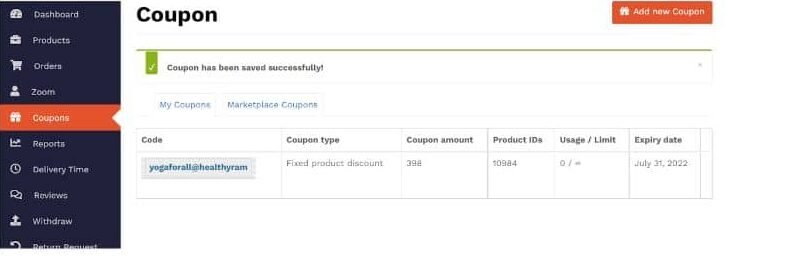
Navigate to the Coupon tab at the Vendor Dashboard, and click on ‘Add new coupon’.
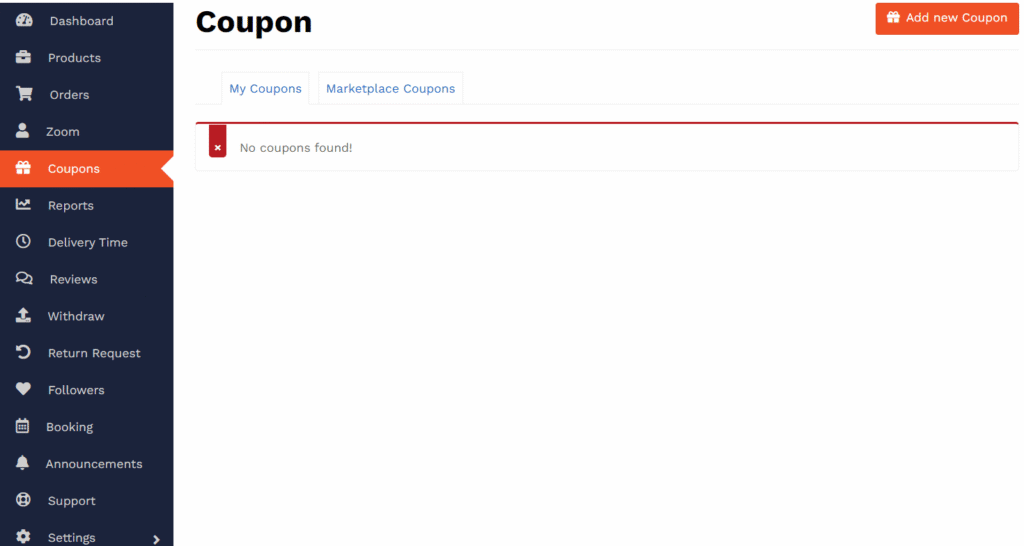
Set the coupon code (title), discount type, amount and limts as needed.
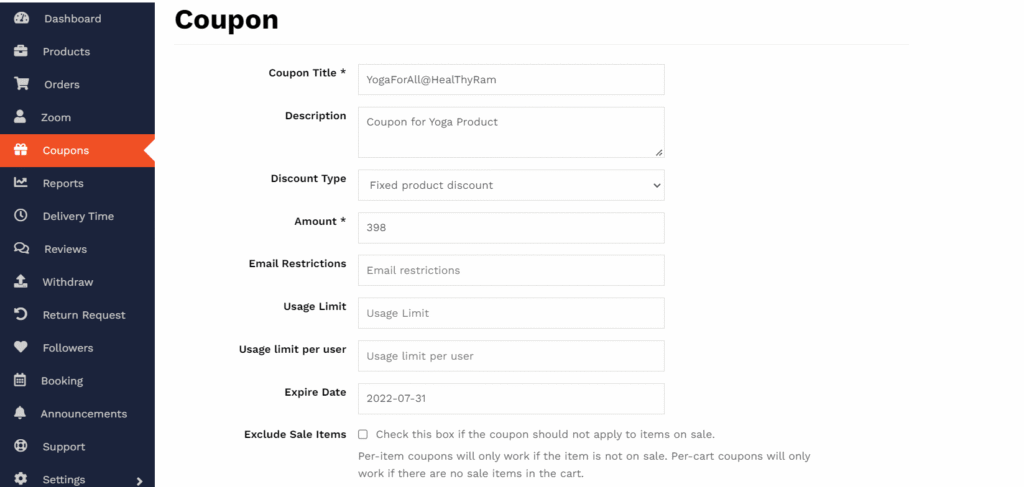
Further, you can specify the coupon if the coupon is to be applicable for selected products, show in the store, etc. Once you are set, click on Create Coupon to save and activate the coupon.
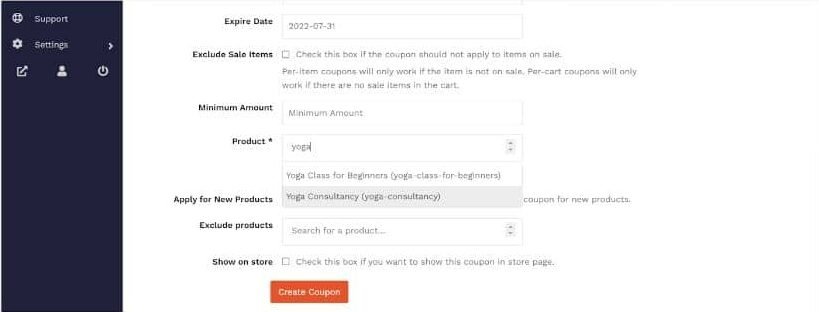
Now the coupon is saved and activated. You can share the coupon code for your customer/user to use.